This post is also available in:
Companies using Microsoft 365 can now connect Microsoft Entra ID to Bybrand to import users from the corporate directory and generate dynamic email signatures with real employee data. The integration helps IT administrators reduce manual work, maintain data consistency, and prepare official signatures for use in Outlook.
This new feature completes an important workflow for organizations looking to standardize email communication: connecting the directory, importing users, generating signatures, and making them available via the Bybrand Outlook Add-in.
Who is this integration for
The Microsoft Entra ID integration was created for companies that already use the Microsoft ecosystem as their foundation for identity, email, and productivity.
It is especially useful for:
- Microsoft 365 administrators.
- IT managers.
- Microsoft Entra ID administrators.
- Companies that use Outlook as their primary email client.
- Teams that need to create signatures for many employees.
Instead of maintaining manual lists of employees, Bybrand now uses the data available in the corporate directory. This makes it easier to create signatures with name, email, job title, phone number, and other attributes available in Microsoft Entra.
Why does this matter now?
Many companies already centralize users, permissions, and identity in Microsoft Entra ID. However, email signatures are often still left out of this workflow.
The result is well-known: each employee sets up their own signature, copies old templates, or uses outdated data.
This creates simple but constant problems:
- Outdated job titles in signatures.
- Incorrect phone numbers.
- Non-standard logos.
- Missing banners.
- Different signatures across departments.
- More tickets for the IT team.
With Microsoft Entra ID integration, the company creates a more reliable foundation for generating professional signatures. The administrator imports users into an Automation group and uses dynamic fields to fill in each employee’s data.
How the integration works
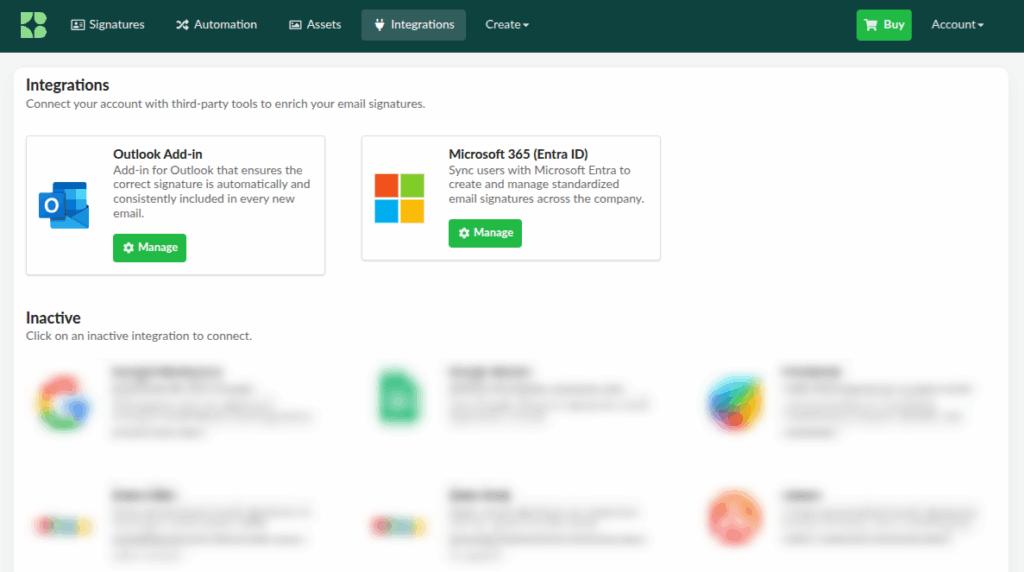
The workflow begins in the Bybrand integrations area. The administrator installs the Microsoft Entra ID integration, logs in with a Microsoft 365 administrator account, reviews the requested permissions, and authorizes the connection.
After that, the integration appears as connected in the Bybrand account. From this point on, the administrator can create a group in Automation and select Microsoft Entra as the import source.
In practice, the process follows four steps:
- Connect Microsoft Entra ID to Bybrand.
- Create an Automation group.
- Import users from the corporate directory.
- Assign a dynamic signature to the group.
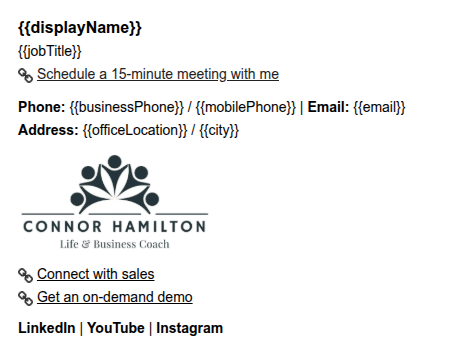
The email signature can use placeholders such as {{displayName}}, {{email}}, {{jobTitle}}, and {{businessPhone}}. Bybrand replaces these fields with the actual data for each imported user.
Example of a dynamic email signature with placeholders:
- See also: How dynamic email signatures work;
Dynamic signatures with Microsoft 365 data
The biggest benefit is dynamic generation.
Instead of creating a signature for each employee, the company creates a central template. This template uses variable fields. When users are imported, Bybrand generates a personalized signature for each person.
This helps in scenarios such as:
- A new employee joining the company.
- Job title change.
- Phone number update.
- Segmentation by team.
- Standardizing signatures by unit or department.
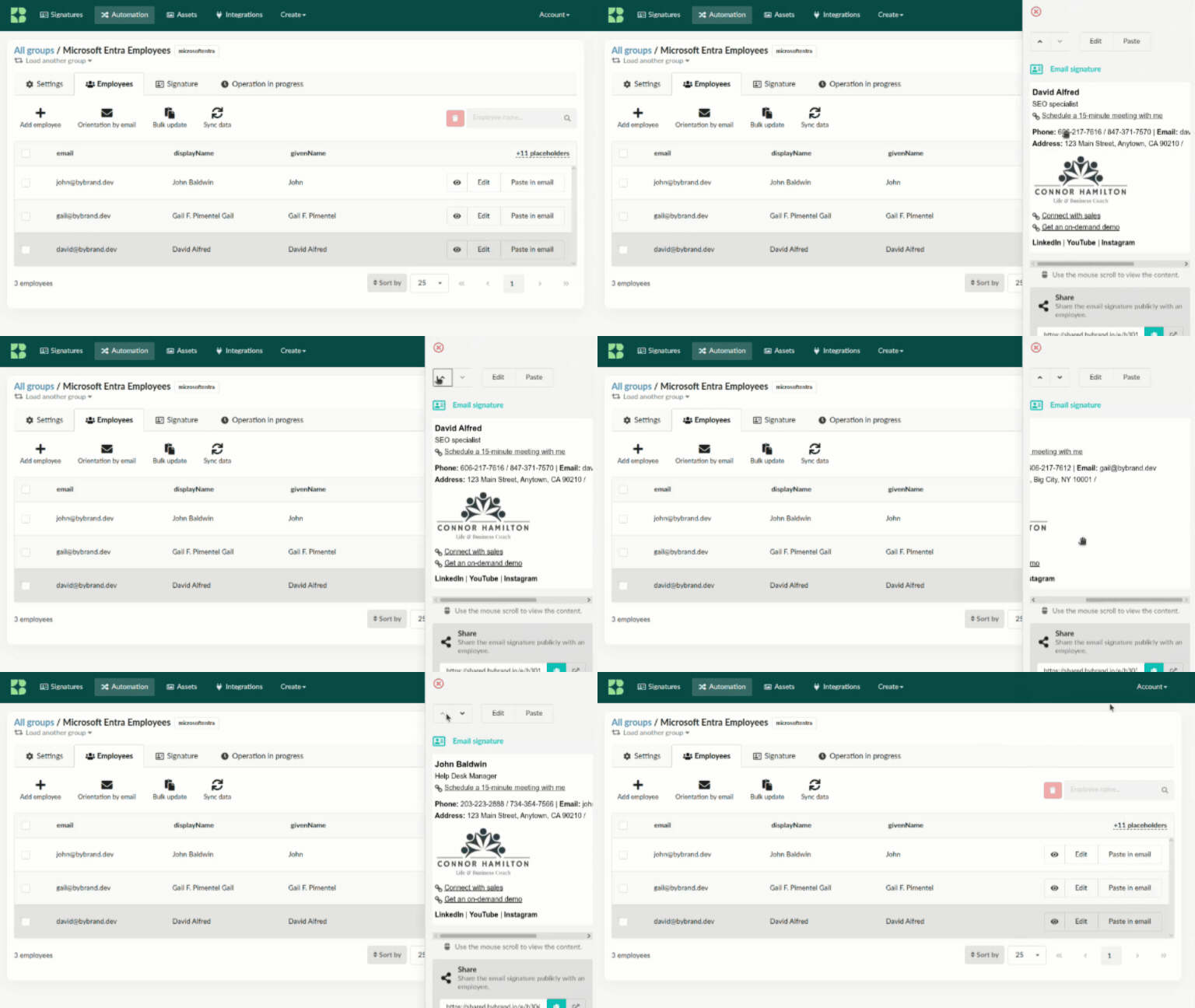
Before implementing on a large scale, the administrator can select a few employees within the group and view the generated signature to confirm that the data is correct.
Previews of generated email signatures:
Use with the Outlook Add-in
Once users are imported and signatures are generated, the company can make these signatures available in Outlook using the Bybrand Outlook Add-in.
The add-in works within Outlook and allows employees to insert the company’s official signature when composing a new message. It was designed for organizations using Microsoft 365 that require centralized control over the signatures used by users.
The administrator can download the manifest.xml file from Bybrand and deploy it via the Microsoft 365 Admin Center. Deployment can be done for the entire organization or only for specific users and groups. According to the Bybrand tutorial, propagation can take up to 72 hours, depending on Microsoft 365.
Read also: How the Outlook Add-in works.
Practical use cases
Sales teams
Salespeople can use signatures with links to schedule meetings, sales pages, demos, or product materials. This turns every email into a more comprehensive touchpoint.
Support and customer success
Support teams can include links to the help center, status page, chat, or satisfaction survey. This way, customers can find helpful resources without having to exchange new messages.
HR and Operations
Companies with frequent hires, job changes, or internal adjustments can maintain more consistent signatures without relying on manual editing by employees.
IT and Microsoft 365 Administrators
The IT team gains a more predictable workflow. Users are pulled from the directory, signatures are generated by group, and the Outlook Add-in can be deployed centrally.
How Bybrand Helps
Bybrand connects three key parts of the process: creation, automation, and deployment.
- The editor allows you to create professional HTML signatures with a logo, links, banners, social icons, a photo, a legal notice, and buttons.
- Automation allows you to apply this template to groups of employees using placeholders.
- The Microsoft Entra ID integration helps import Microsoft 365 users to speed up signature creation.
For companies that use Outlook, the natural complement is Bybrand’s Outlook Add-in, which brings the official signature to the environment where employees write their emails.
Conclusion
Microsoft Entra ID integration brings email signature management closer to the company’s actual structure.
Instead of manually copying data, the administrator uses the corporate directory as the source. Instead of creating signatures one by one, Bybrand generates dynamic signatures by group. And with the Outlook Add-in, these signatures can be made available directly in Outlook.
For companies already using Microsoft 365, this operation reduces rework, improves standardization, and helps ensure that every email sent better represents the brand.

Create your first email signature with Bybrand
Bybrand offers the ability to generate, administer, and distribute essential email signatures for your employees.