
This post is also available in:
In this tutorial, you will learn how to create your first email signature on Bybrand in just a few steps. By the end, you will have a professional signature ready to use or share with your team.
Let’s get started!
Creating from a template
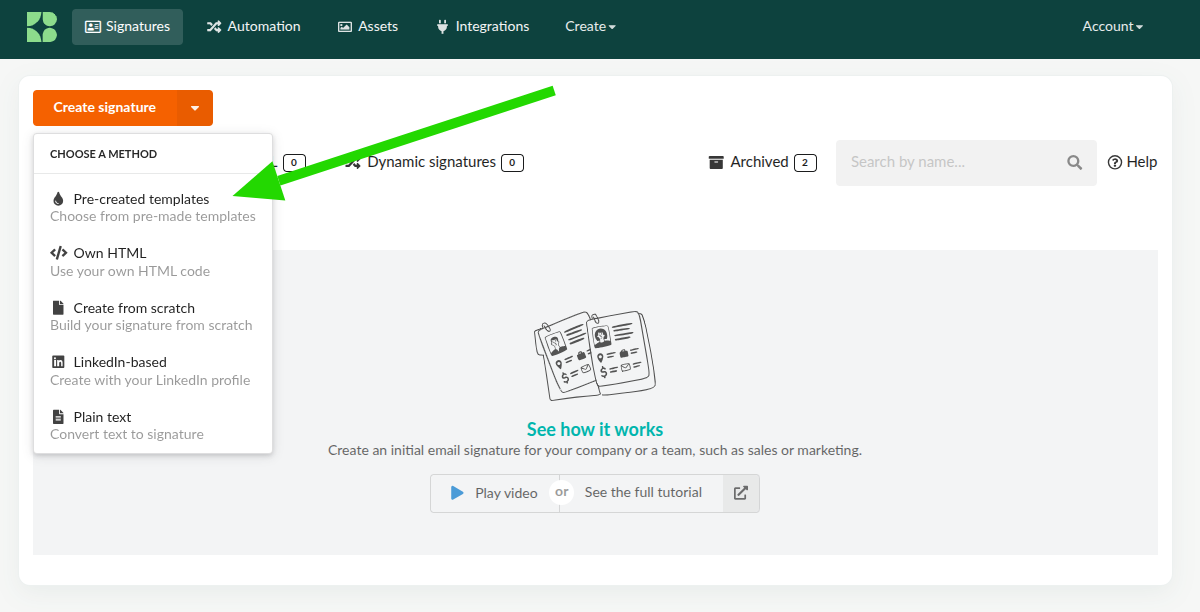
First, click the Signatures tab in the main menu.
- Click the Create signature button to start creating your email signature.
- Or directly in the Dashboard, in the Create from a template link.
Templates
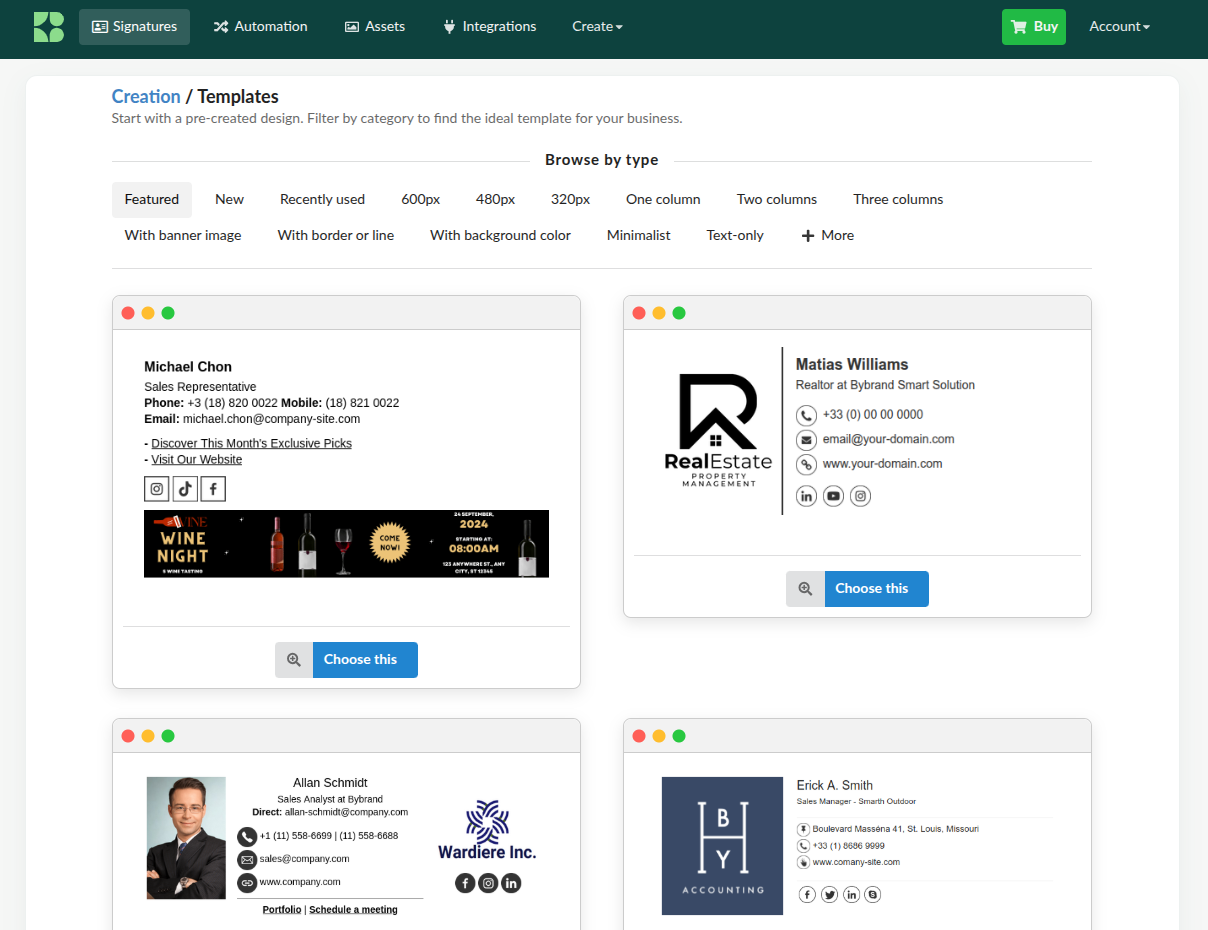
You will see a list of pre-created templates. Browse the list and select the one that best suits your needs. Click Choose this to choose your template.
After selecting your template, proceed to edit the personal information. This includes adding your name, job title, contact information, and any other relevant details.
Editing the email signature
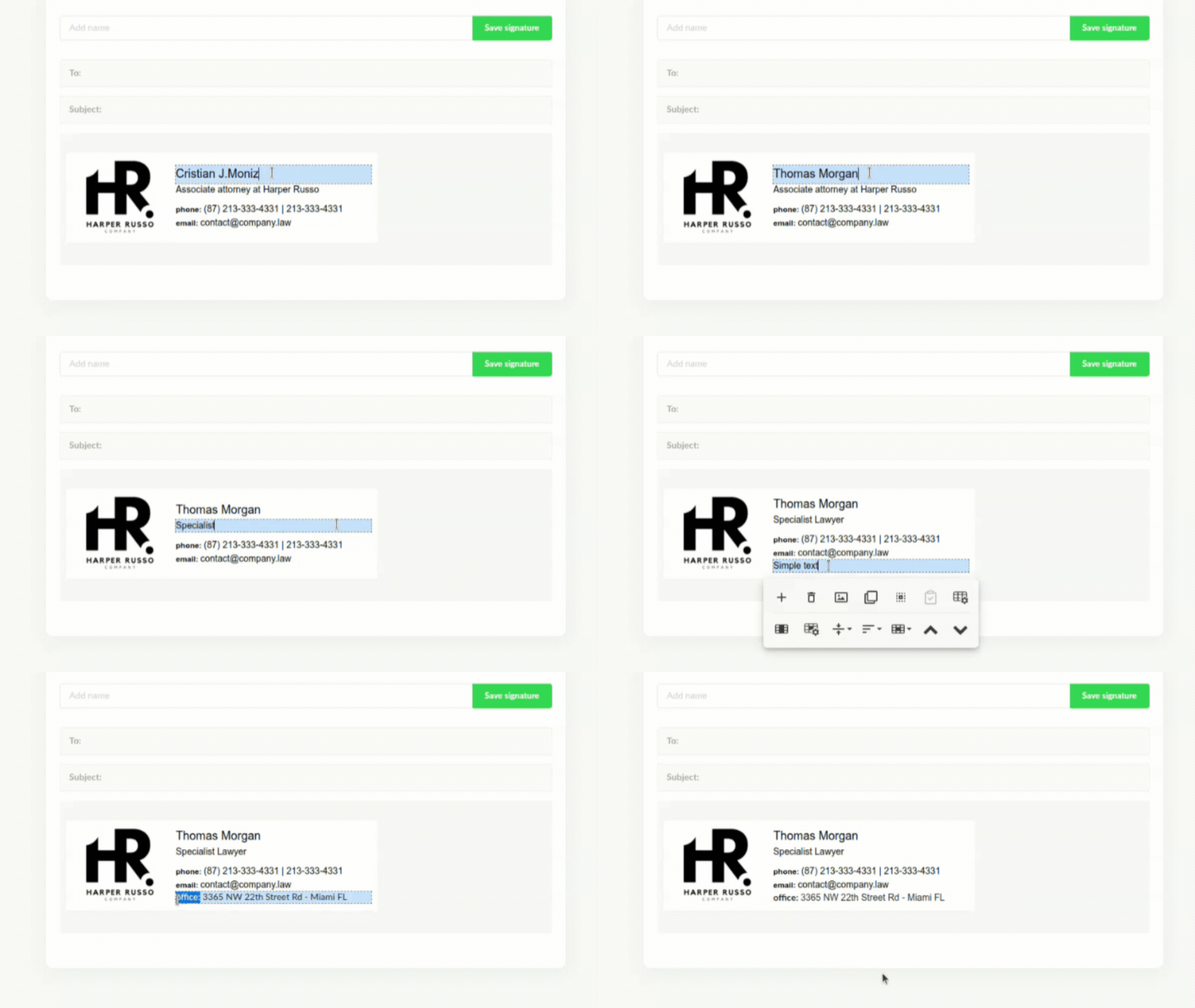
- Turn on the toolbar: Click any part of the signature text or image to activate the toolbar.
- Customizing text: You can also select the text content to customize the type, font, or size.
Add or remove elements
Use the toolbar to add new rows, spaces, columns, or disclaimers by clicking on the (+) button. If you need to remove an element, click the Trash button.
Read also: Exploring email signature editor basic options;
Save the signature
When you are satisfied with your edits, save the email signature with a name to facilitate later identification. Click on the green Save signature button.
Extras
Preview & Test
It’s a good idea to send a test email to ensure that the signature appears as expected.
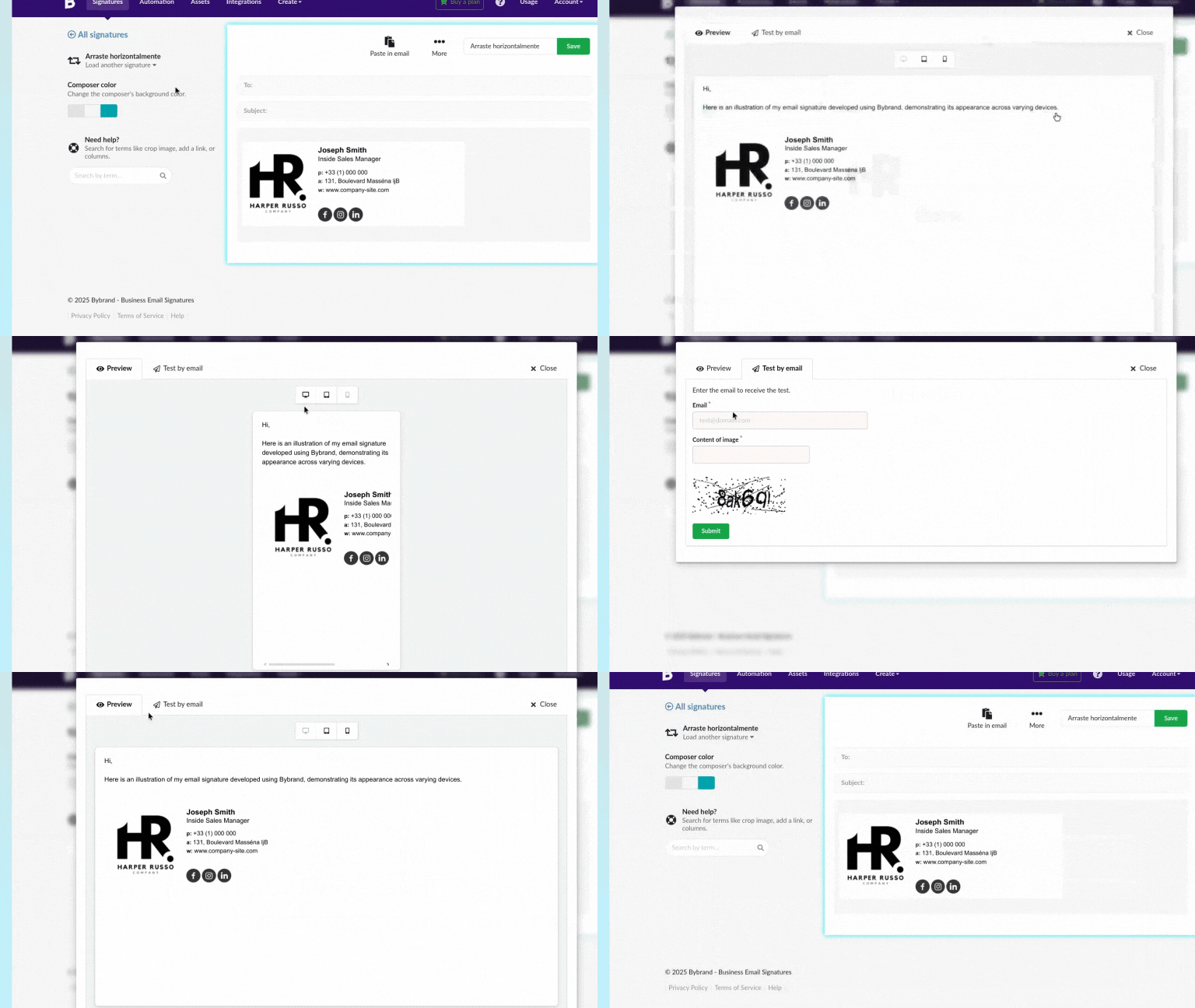
Click on the Preview & Test button.
There are two types of tests:
- Preview: click the button to see the signature in different sizes;
- Using an email: Enter the email address to which you want to send the test email;
Cloning the current email signature
To create a new signature identical to your current one, click on the Duplicate button. You can now edit the cloned signature as needed, saving time by not starting from scratch.
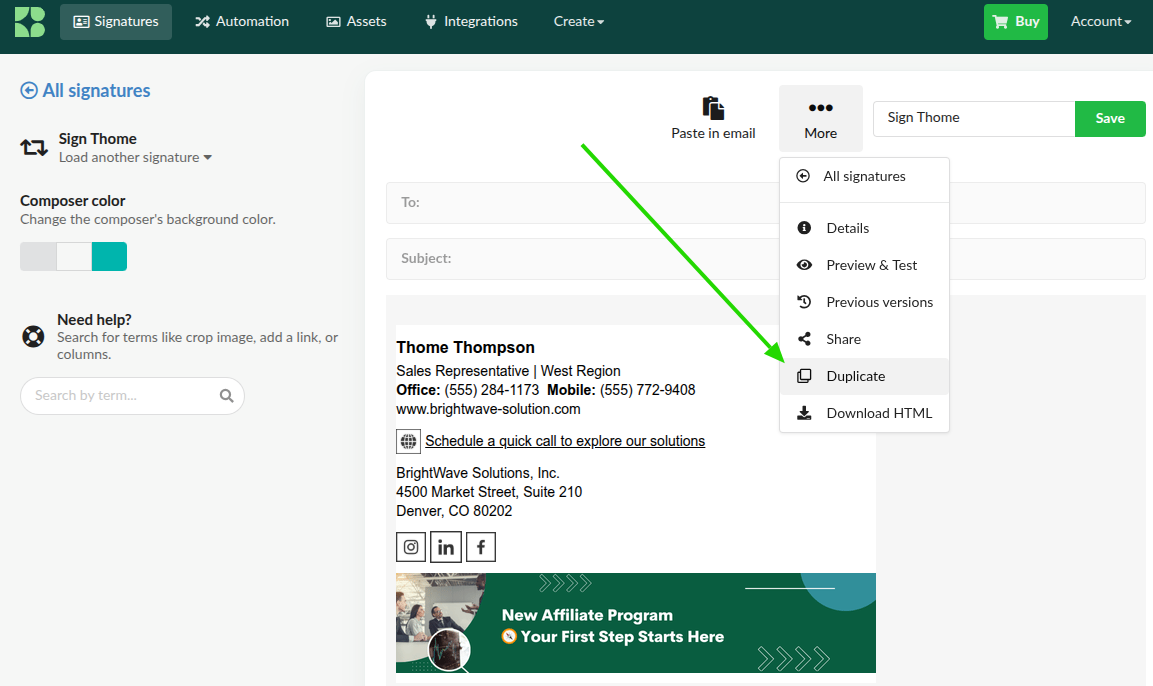
In addition to the above information, you can improve your email signature with these other quick tutorials:
- Lines: How to add or remove in an email signature;
- Icons: How to add or remove;
- How to add a logo to your email signature;
Using the email signature
Once your signature is finished, copy it to the clipboard. Click Paste in the email to be directed to the signature usage page.
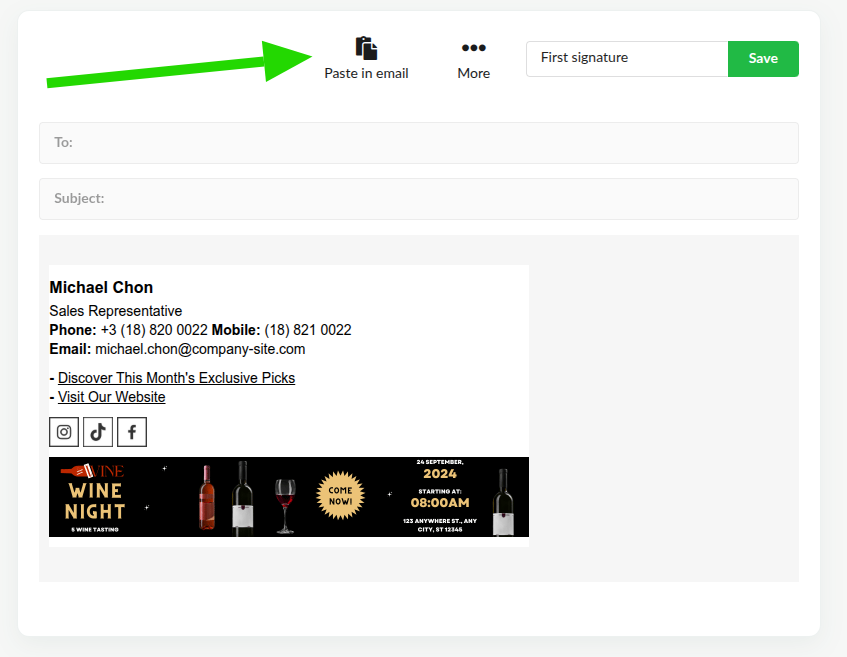
Follow the specific instructions of your email client to paste the signature. Bybrand provides tutorials for popular email clients:
- Gmail—How to add an email signature;
- How to add a signature to Outlook.com;
- Adding an HTML email signature on Mac Mail
Complete video tutorial
Watch this 2-minute video on how to create a professional email signature that generates conversions, complete with a banner and links. A company logo can also replace the face photo, if desired.
If you require any clarification or have any difficulties, please contact our support team via email or chat.