
This post is also available in:
Bybrand’s integration with Google Workspace allows you to import users from the organization’s directory and manage email signatures centrally.
In this tutorial, you will see how to connect your organization to Bybrand, install the app, load users, and deploy email signatures.
Prerequisites
Before starting, make sure you have:
- An active Google Workspace account;
- Administrative access to the organization;
- With super-admin privileges to install and authorize apps for the domain.
1. Adding the domain in Bybrand
The first step is to add your organization’s domain to the integration.
In Bybrand, go to:
Integrations → Google Workspace
Then:
- Click to add a new integration;
- Log in with your Google Workspace administrative account;
- Enter the organization’s primary domain;
- Save the integration.
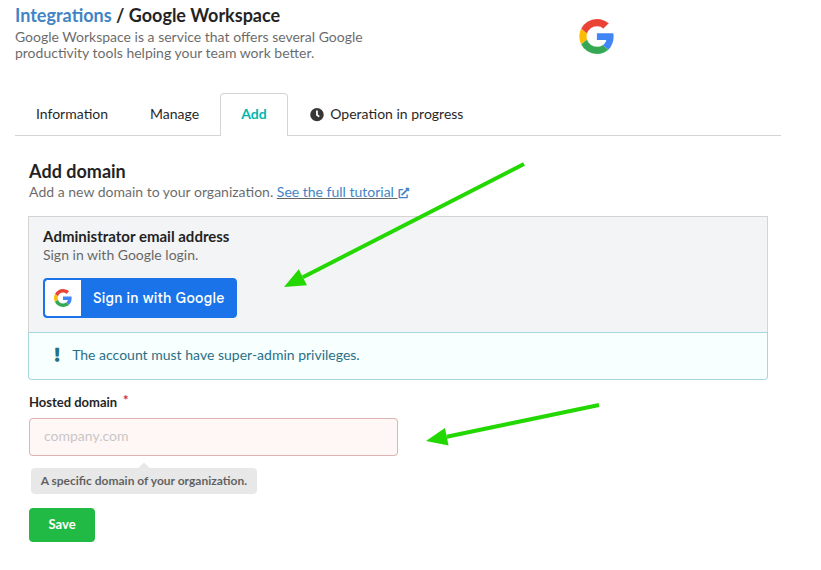
After that, you can add other domains if your organization uses multiple domains or additional addresses.
2. Install Bybrand in Google Workspace
To allow Bybrand to access organization users, install the app through the Google Workspace Marketplace.
To follow the process using a more recent version of the Google Workspace interface, watch the tutorial:
The video shows the installation and authorization process for the integration.
Installation via Google Workspace Marketplace
Access the Bybrand app on the Google Workspace Marketplace using an administrative account.
Choose the installation option for the organization and follow the instructions provided by Google.
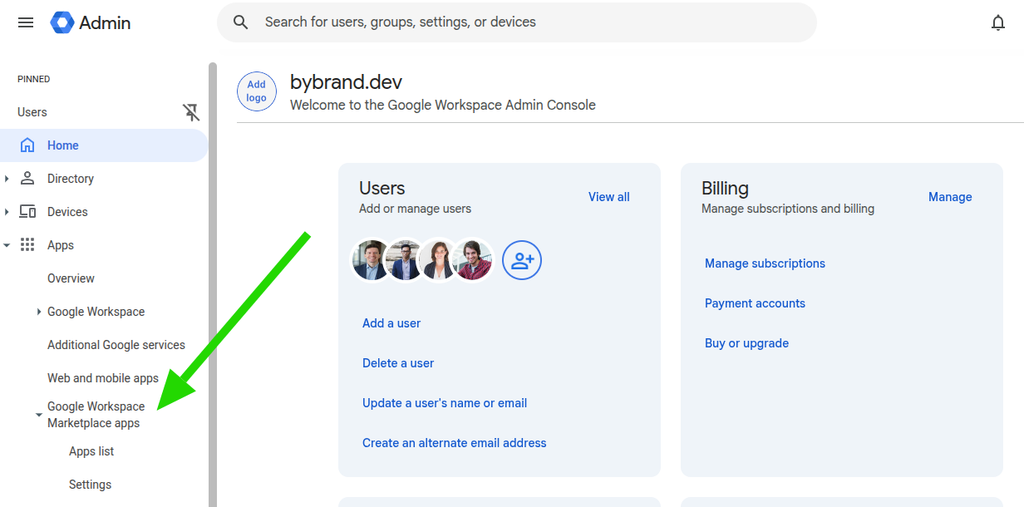
In the Admin Console, go to:
Google Workspace Marketplace Apps → Apps list
Then:
- Install app
- Search for Bybrand in the search field
- Click to install Bybrand.
During the process, Google will display the permissions requested by Bybrand.
Review the information and confirm the installation.
Once the installation is complete, return to Bybrand.
3. Test the connection
Before loading the user list, test the connection to confirm that Bybrand has the necessary permissions to access the organization’s directory.
In the Google Workspace integration area within Bybrand:
- Locate the domain you want to test;
- Click Test connection next to the domain;
- In the side panel, check the domain displayed in the Domain field;
- Click the green Test connection button to run the test.
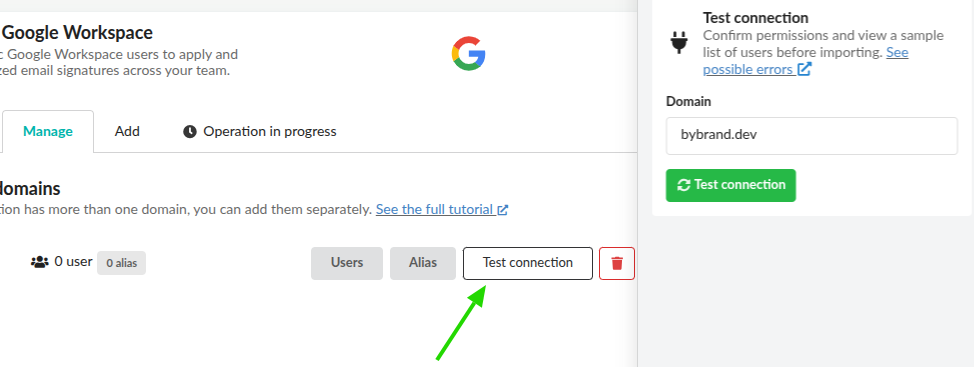
The test verifies the integration permissions and allows you to view a sample of users before importing. It does not replace loading the full user list, described in the next step.
4. Deploying email signatures in Gmail
With the integration installed and the connection tested, you can choose between two methods to deploy email signatures to Google Workspace accounts:
- Individual deployment: useful for a few accounts. You select the desired account and send the signature to the account’s Gmail. This option is also recommended for testing the deployment before updating more users.
- Deployment using automation: ideal for a large number of user accounts. Automation facilitates deployment at scale without needing to send each signature individually.
If you choose individual deployment, first load the organization’s user list, as described in section 4.1. Loading the user list below.
4.1. Loading the user list
After installing and authorizing the integration, Bybrand will be able to query existing users in the organization’s directory.
In the Google Workspace integration area within Bybrand, click the option to load users.
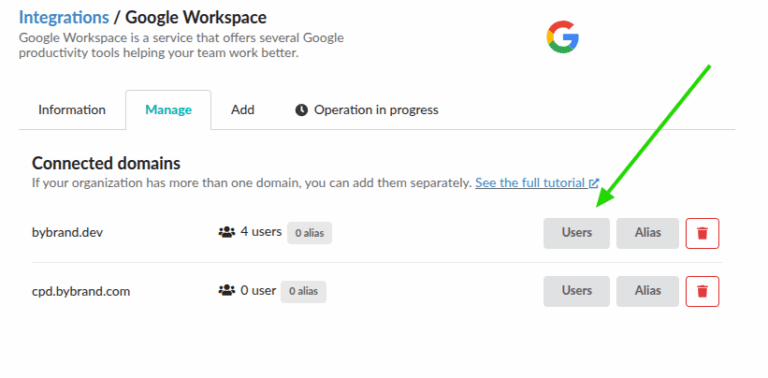
The task will be processed in the background.
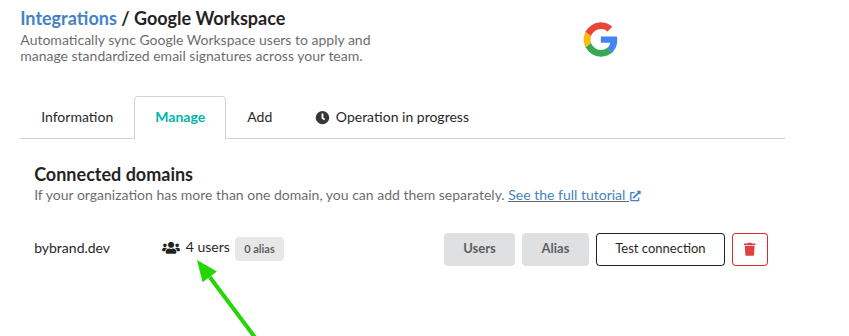
When the process is successfully completed, Bybrand will display the total number of users found in Google Workspace.
4. Deploying the signature to email accounts
After importing users, you can now deploy an email signature to Gmail.
To test:
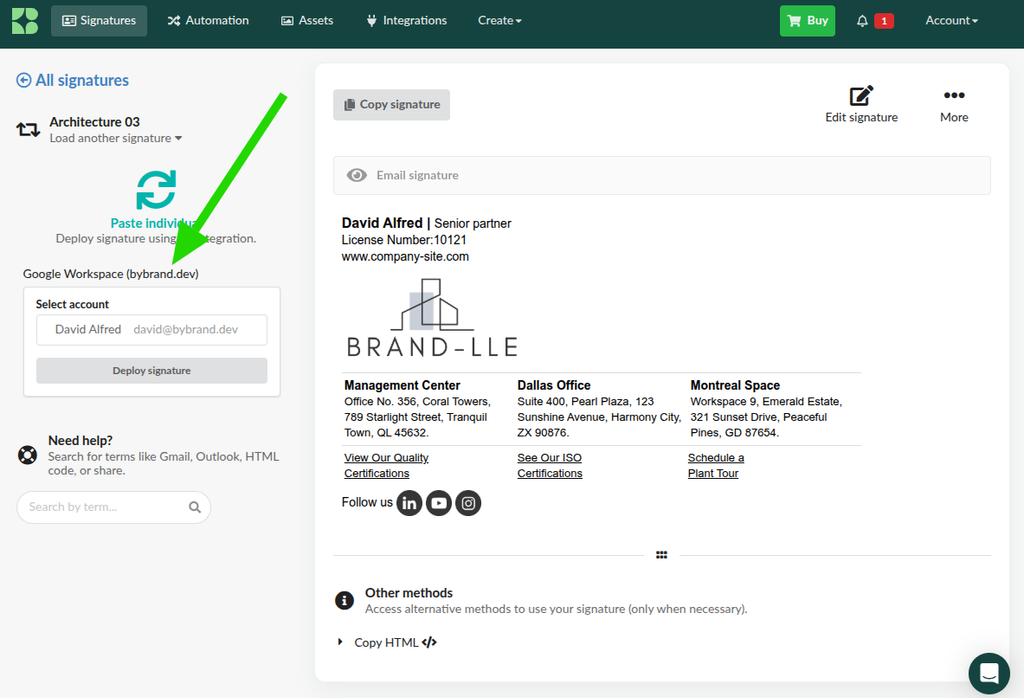
- Visit the Signatures section in the main menu;
- Select the desired signature and click Paste in email;
- Send the signature to the employee’s account.
In Gmail:
- Open Gmail with that account;
- Create a new message to verify the signature.
If Bybrand reports that the update is complete but the signature does not appear immediately, reload Gmail.
In some cases, it may be necessary to refresh the page or log in to the account again.
Deployment using automation
To deploy signatures to a large number of accounts, use the Bulk update feature, available in the Automation menu. See how to import users from Google Workspace.
In Bybrand:
- Access Automation in the main menu and open the automation linked to the Google Workspace integration;
- Go to Employees → Bulk update;
- Select the employees you want to update. To include all employees in the automation, use Select all;
- Click Update selected to start the deployment;
- Follow the result in the Operations in progress menu.
In this area, you can check the operation logs and verify which signatures were successfully updated or failed.
To check the full step-by-step process, see the tutorial: Bulk update employee email signatures.
Organizations with multiple domains
Bybrand also supports Google Workspace organizations that use more than one domain.
Additional domains must be associated with the same organization and correctly configured in the integration.
Troubleshooting
If the integration was installed but Bybrand cannot query users or perform an operation in Google Workspace, check the items below.
The email signature does not appear in Gmail
If Bybrand displayed a success message but the signature is missing in Gmail, your browser may still be using the previous signature. To fix the issue, press F5 to refresh Gmail, or sign in again.
- Complete guide: How to fix email signature not appearing in Gmail;
App access
If access to organization data is revoked, the Bybrand app may remain installed, but the integration will no longer have the necessary permissions to query users and deploy email signatures.
To grant access again, enter the Google Admin Console with an administrative account and follow the steps below:
- Go to Apps → Google Workspace Marketplace Apps → Apps list;
- Open the Bybrand app;
- Locate the Data Access section;
- Click Grant access, as shown in the image;
- Review the requested permissions and confirm the authorization if Google prompts you;
- Check if the status appears as Granted.
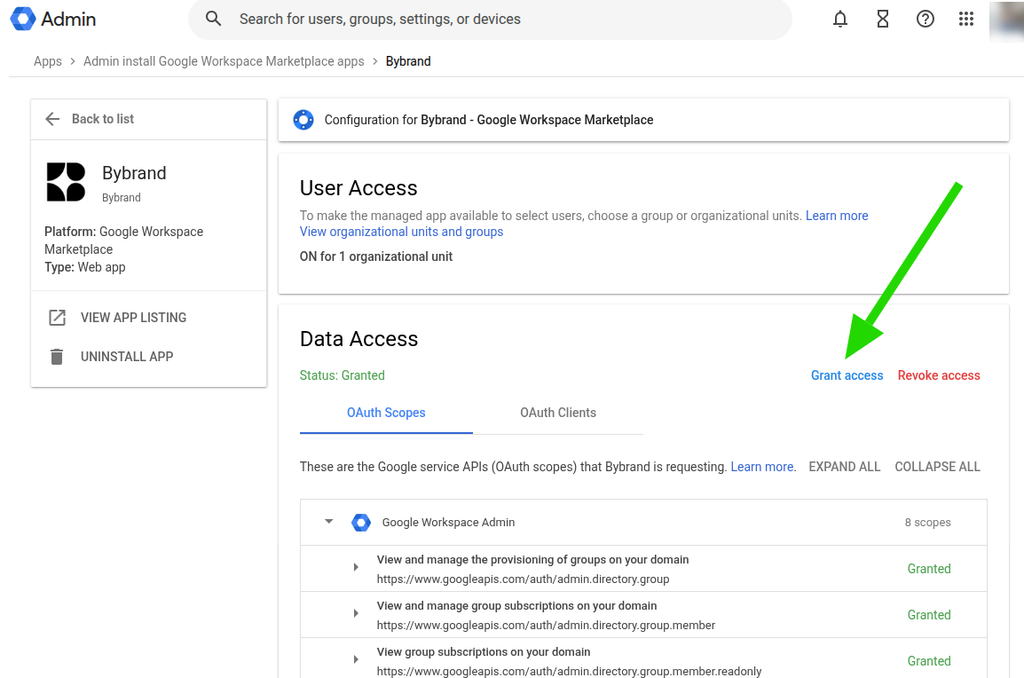
In the example image, the Granted status indicates that access has already been granted. If this is your organization’s status, you do not need to authorize again.
After re-establishing access, return to Bybrand and run Test connection in the Google Workspace integration. If the test is successful, try loading users or deploying signatures again.
Check Bybrand’s access to Google Workspace APIs
Organizations with more restrictive security policies may block third-party app access to Google Workspace APIs.
In the Google Admin Console, go to:
Security → Access and data control → API controls
Depending on your organization’s configuration, check the following areas primarily.
Integration was installed, but no users appear
If the installation was completed but the user list is not loading:
- Confirm that you used an administrative account;
- Check if the Bybrand app is installed for the organization;
- Confirm that Bybrand is not blocked in API controls;
- Return to the integration in Bybrand;
- Try loading the user list again.
The Google interface is different from this tutorial
Google regularly updates the Google Admin Console.
For this reason, the position of certain menus, option names, and screens may change.
If the images in this guide are different from the current interface, we recommend also using our latest video tutorial.
Video tutorial
Watch the full tutorial to integrate Bybrand with Google Workspace and automatically deploy professional signatures across the entire organization, from template creation to bulk updating Gmail users.
Removing the integration
You can remove the integration at any time.
First, remove or disconnect the integration within Bybrand.
If you wish to completely revoke access, you can also remove the app or change its permissions directly in the Google Admin Console.
Related
See also:
- How to create signatures with Google Directory user photos;
- Update email signatures for aliases in Google Workspace;
- Possible issues with Google Workspace integration;
- Import from Google Workspace groups;
If you still have issues with the integration, contact Bybrand support.