
This post is also available in:
Keep employee data up-to-date in Bybrand using information from the connected directory. You can run the sync manually or set up an automatic routine.
What is data synchronization?
Syncing updates employee placeholders in Bybrand with data from the source directory, such as Google Workspace or Microsoft Entra ID.
For example, when a person’s job title, department, phone number, or name changes in the directory, Bybrand can use the new values in email signatures.
Before you start
Check if:
- the directory integration is connected;
- employees have already been added to the group in Bybrand;
- directory fields are mapped to the correct placeholders;
- your account has permission to manage the integration.
How to sync data manually
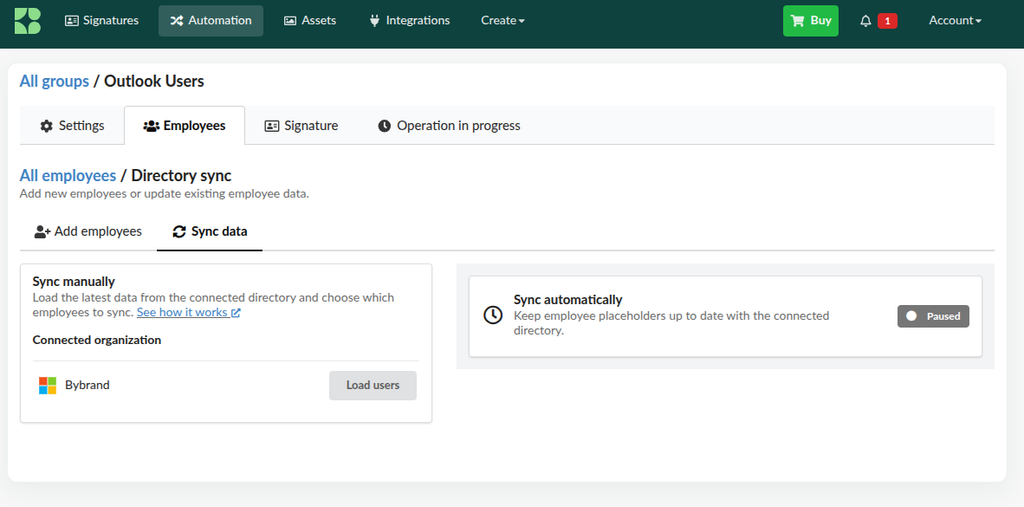
Use manual sync when you need to immediately load the latest data from the directory and choose which employees to update.
- In Bybrand, go to Automation and open the group connected to the directory.
- Select the Employees tab.
- In the Sync directory area, open the Sync data option.
- In the Sync manually panel, confirm that the connected organization is correct.
- Click Load users. Bybrand will retrieve the latest data from the connected directory.
- In the loaded list, select the employees you want to sync and proceed with the update.
- Upon completion, check the operation result and review a few employees to confirm that the placeholders were updated correctly.
What happens during synchronization?
Bybrand queries the connected directory and looks for employees who already belong to the group. For each person found, the values of the mapped fields are compared and updated when necessary.
- Only employees who already exist and are linked to the group are updated.
- People who do not belong to the group are ignored.
- New users found in the directory are not added automatically.
- Employees missing from the directory are not removed automatically.
- Fields with no changes remain as they are.
Automatic synchronization
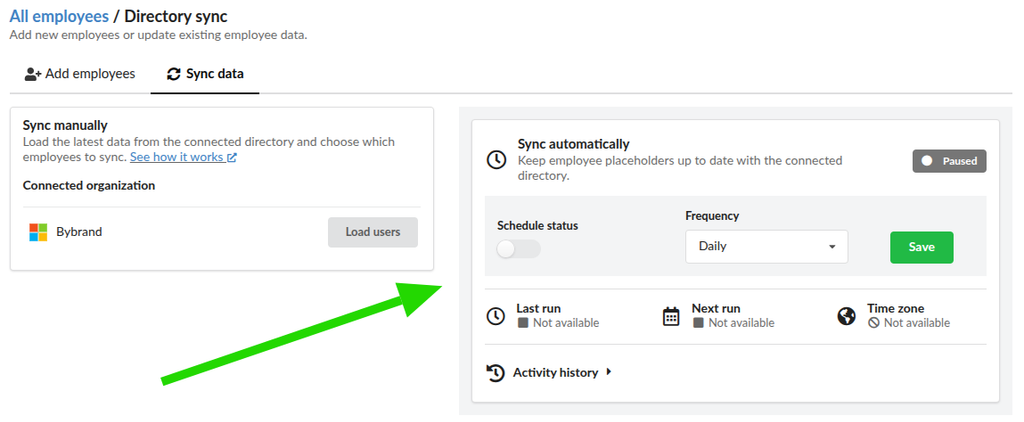
Automatic sync keeps employee placeholders updated at regular intervals. Once activated, Bybrand runs the routine in the background using data from the connected directory.
How to set up
- In Bybrand, go to Automation and open the group connected to Google Workspace or Microsoft Entra ID.
- Select the Employees tab.
- In the Sync directory area, open the Sync data option.
- In the Sync automatically panel, open the routine settings.
- Enable the Schedule status toggle.
- Under Frequency, choose one of the available options:
- daily;
- every 3 days;
- weekly;
- biweekly.
- Click Save.
- Confirm that the status no longer appears as Paused and check the next scheduled run.
You can change the frequency or pause the routine at any time. The new setting will be applied to the next runs.
What will be updated automatically?
The routine uses the field mapping already configured for the group. In each run, Bybrand queries the directory and updates only the employees who already exist and are linked to the group.
Directory data replaces the corresponding values in the mapped placeholders. Automation does not add new employees, remove people from the group, or create email signatures.
How to track runs
In the Sync automatically panel, you can view:
- the schedule status: active or paused;
- the configured frequency;
- the date and time of the last run;
- the scheduled date for the next run;
- the time zone used by the routine.
Open Activity history to view previous runs and their results. If a significant failure occurs, Bybrand will display a notification with the problem and recommended action.
Manual change
You can also update placeholder data manually.
This option is useful when you need to quickly modify data for one or two employees without running a new sync.
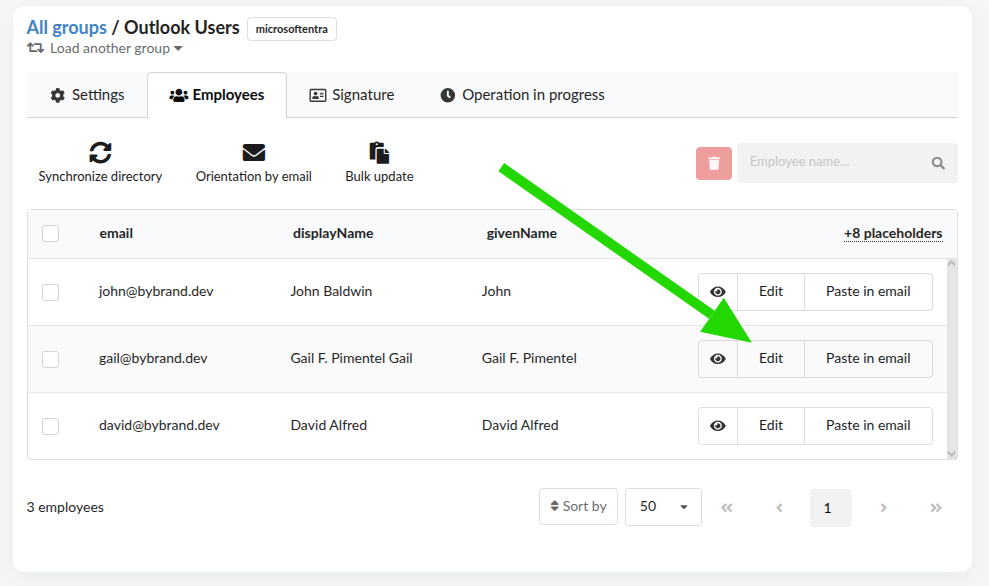
To complete this, visit the employee list in the Automation group. Then, click the Edit button for the desired employee.
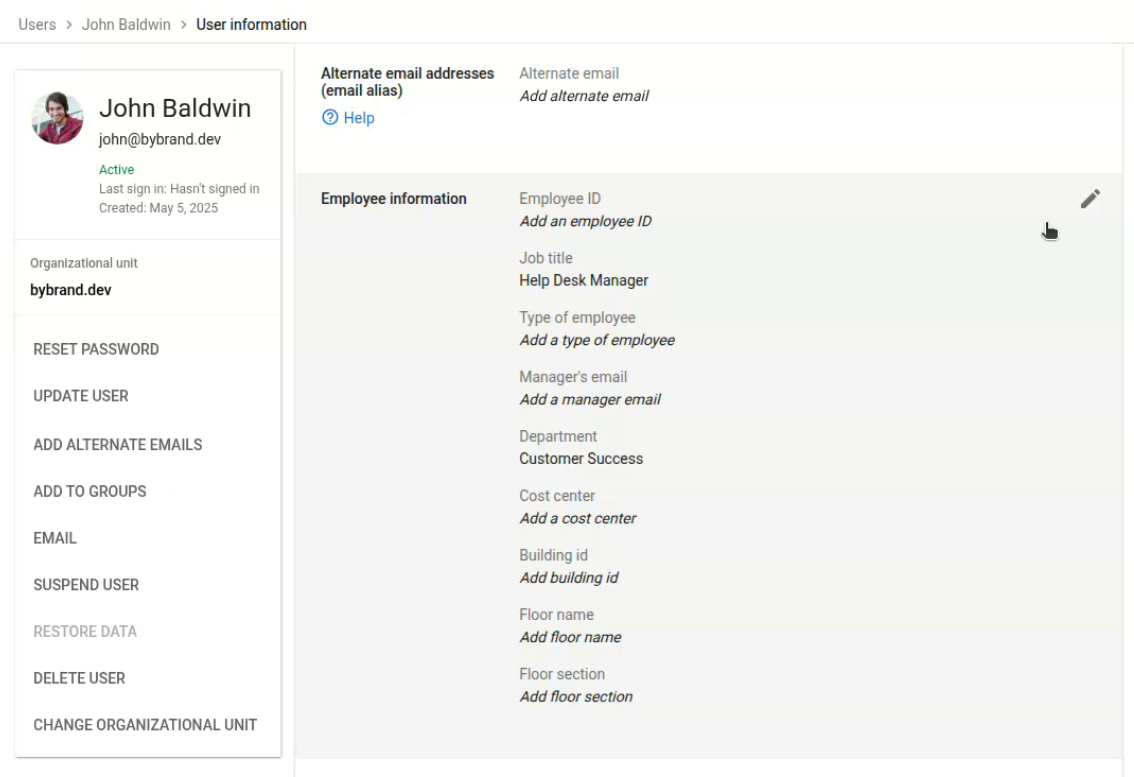
On the edit screen, you can view and modify the fields used in the signature placeholders.
After saving the change, that employee’s signature can be updated or redeployed, depending on the method used by your organization.
Troubleshooting
Data was not updated
- Confirm that the person already exists and is linked to the group in Bybrand.
- Check if the information was changed in the source directory.
- Review the field mapping.
- Check the result of the last run.
- Run a manual sync to test again.
Integration needs to be reconnected
If authentication expires or the connection is revoked, reconnect Google Workspace or Microsoft Entra ID and try syncing again.
Some employees were ignored
Employees without a valid remote link or outside the group are not updated. Check these individuals’ association with the integrated group.
Automatic sync did not run
- Confirm that the option is active.
- Check the frequency and the next run.
- Verify if the integration is still connected.
- Check the notification or the result of the last attempt to identify the cause.
Delay in propagation of changed data
When you make a change to a user field in the User Directory, it may take some time for the data to propagate to all services. Some changes can take up to 24 hours to take effect.
Therefore, if you sync data with Bybrand and see no changes, you may need to wait 24 hours.
More information about this here:
FAQ about syncing data
Does syncing add new employees?
No. It only updates people who already exist and are linked to the group in Bybrand.
Does syncing remove employees who have left the company?
Only if you check the option remove if not found, in the manual option.
Can I continue syncing manually?
Yes. Manual sync remains available even when the automatic routine is configured.
Can I change the frequency later?
Yes. You can choose another frequency or disable automation. The change will be applied to the next runs.
Can I sync only some users?
Yes, in the manual option. During the process, you can select which users you want to sync.
This is useful when you want to update only one employee or a small group of people without changing all imported records in the Automation group.
What happens to manually added data?
Bybrand keeps manually added values when the corresponding fields are empty in the source integration.
For example, if you manually add a value for an employee’s department field, but that field is empty in the connected directory, the sync will preserve the existing manual value.
This behavior helps prevent useful data from being erased when the source has no information filled in.
How does Bybrand handle fields with multiple values?
Some Google Workspace Directory fields, such as organizations, can contain more than one record for the same user. This happens, for example, when a collaborator has a job history or is linked to more than one organization.
In these cases, Bybrand always prioritizes the record whose property primary (Primary organization) is set to true. Fields such as job title, department, cost center, and other organization information will be obtained from this primary record.
For any questions, please contact our support service.