
This post is also available in:
This tutorial shows how an employee (end user) uses the Bybrand Add-in inside Outlook to automatically insert the company’s official email signature when composing a new message.
Quick video: How to open the Bybrand add-in in Outlook for iPhone, iPad & Android
How the employee uses the Add-in
After the administrator deploys the add-in to the organization, the Bybrand Add-in will automatically appear in the employee’s Outlook.
The process is simple and only takes a few steps:
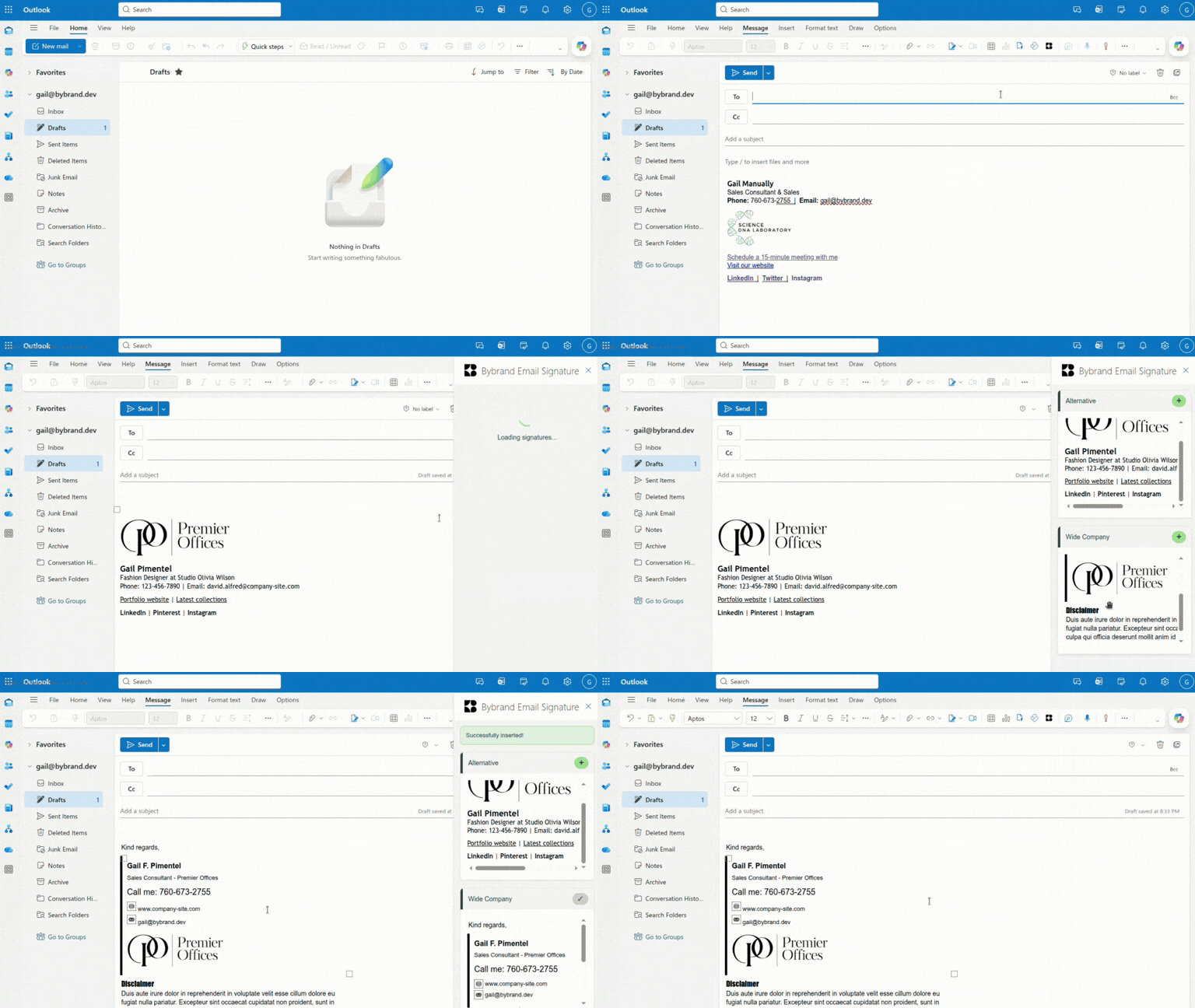
Creating a new email
Open Outlook and click New email.
When the compose window opens, Outlook will load the employee’s default email signature.
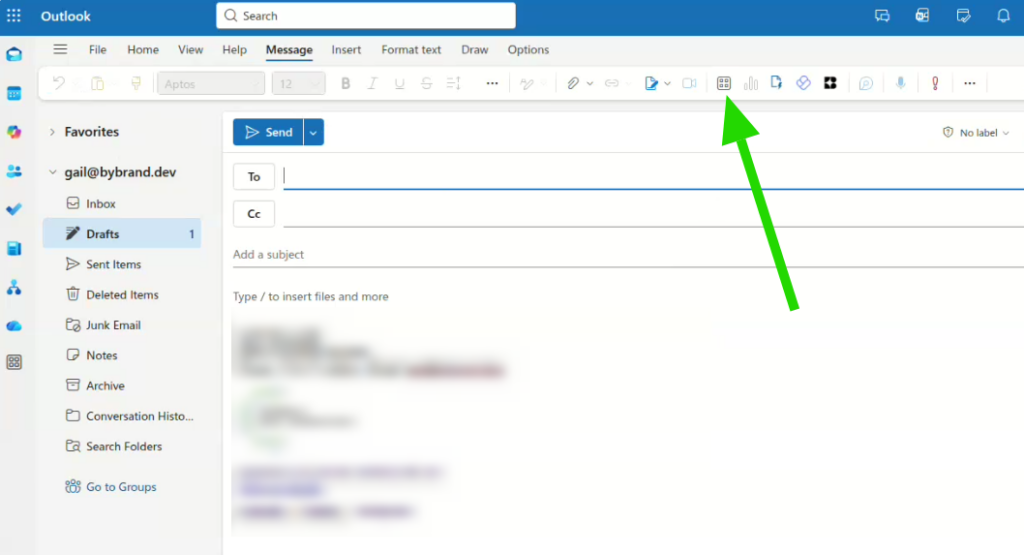
Opening the Bybrand Add-in
Click the add-in Bybrand Email Signature.
The component will open in a side panel inside Outlook, displaying the signatures available for the employee.
These signatures are managed by the team or administrator directly in Bybrand.
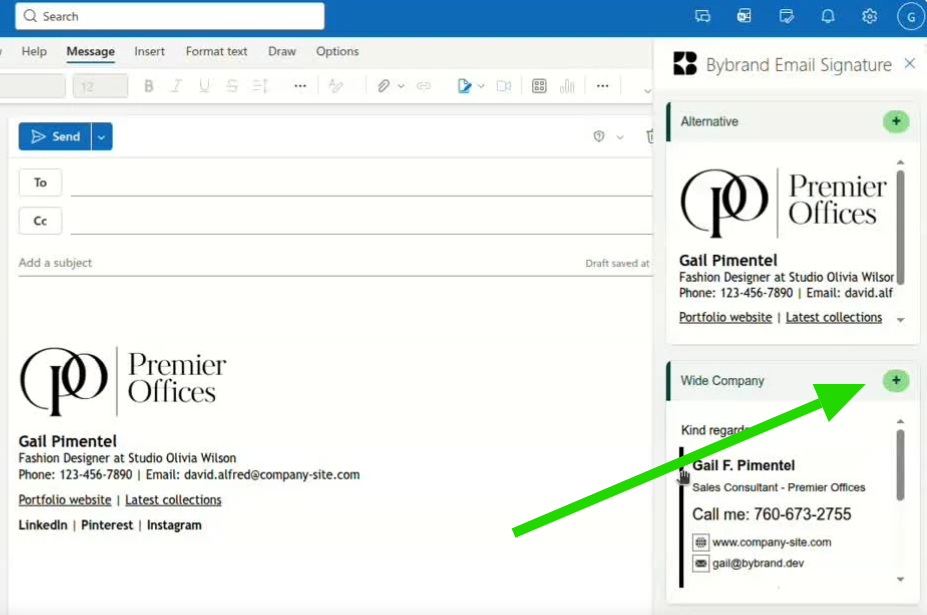
Inserting the signature into the email
In the component panel:
- Select the desired signature.
- Click Insert signature.
The signature will be automatically inserted into the email body.
Tips and common troubleshooting
The Add-in does not appear in Outlook
- Refresh the Outlook Web page, or
- Close and reopen Outlook Desktop.
If the issue persists, contact your IT administrator to verify that the add-in has been deployed to your user account.
Outlook already has a signature configured
When you use the Bybrand Add-in and click New message, the existing signature will be replaced by the company’s official signature.
The signature does not load in the Add-in
If no signatures appear in the Bybrand panel:
- Check whether a signature is linked to your email in the Bybrand platform.
- Confirm that the email address of your Outlook account matches the one registered in Bybrand.
If necessary, ask your administrator to verify your user configuration.
The Add-in opens but remains blank
This may happen when the browser blocks third-party cookies.
To resolve this:
- Enable third-party cookies in your browser settings.
- Refresh the Outlook page.
- Try opening the component again.
Mobile device limitations
No support for aliases, shared/delegated mailboxes, or non-Exchange accounts.
Mobile versions supported
The add-in works only on the following versions of Android or iOS:
- Android (Version 4.2352.0 and later)
- iOS (Version 4.2352.0 and later)