
This post is also available in:
This quick tutorial will show you two ways to add an icon to your HTML email signature.
- In the first example, you can change an existing icon.
- You can add an icon on a new row in the email signature in the second.
Our gallery includes a wide selection of commonly utilized icons, such as those for Facebook, LinkedIn, phone numbers, and addresses. Additionally, you are not restricted to these options. You have the flexibility to incorporate your own custom icons as needed.
See, in the end, three good free icon sites.
Adding icons to your email signature
When selecting an already added icon item in the signature, click on the image function. Then it will open a modal window with a menu for the gallery of frequently used icons and different colors.
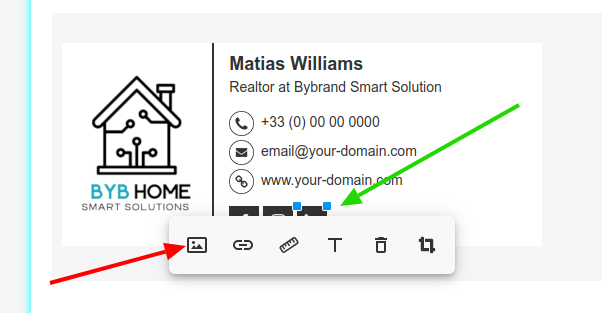
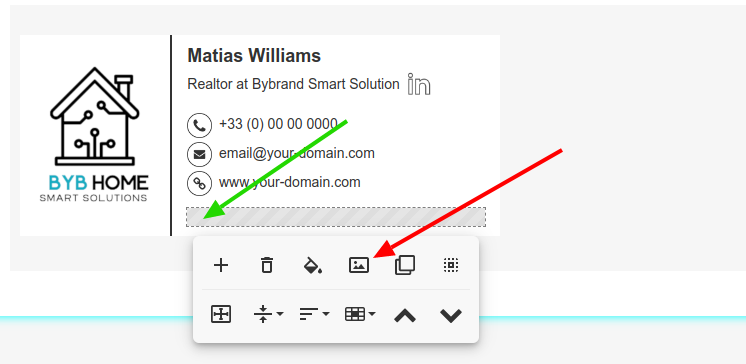
In this second example, you can see how to add an icon image on a new row.
Official social media icons
You can download the official icons for each platform. However, these icons are usually offered in a large dimension, so it might be a good idea to resize the image to be smaller than 45px wide.
- LinkedIn Brand Guidelines | Downloads;
- Facebook Brand Elements;
- WhatsApp logo;
- Instagram Brand Guidance;
- Pinterest brand guidelines;
- Twitter (X);
Complete video
Here is a great video showing the process of changing icons, opening the gallery, and accessing the option.
Free icons stock
If the icons from the gallery do not satisfy you, some websites offer free icons! The advantage of uploading your icons in your email signatures is that you can change the color or shape from a circular to a rectangular icon.
Please don’t forget to read the license of each image.