
This post is also available in:
Add new employees to a group using the users available in the connected directory. You can choose specific people or import all at once.
Before you start
Check if:
- the group is connected to the correct directory;
- the integration is active;
- the users you want to add already exist in the source directory;
How to access manual import
- In Bybrand, go to Automation.
- Open the group connected to the directory.
- Click the Employees tab.
- Open the Sync directory.
- Select Add employees.
In the Add manually area, you will see the connected organization and the Load users button.
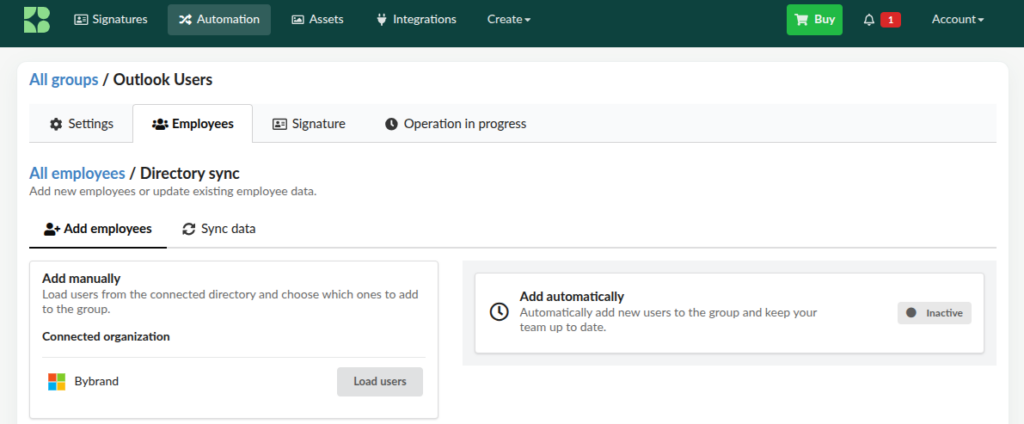
How to add employees
- Confirm that the connected organization is correct.
- Click Load users.
- Wait for Bybrand to query the directory.
- In the Import selected section, open the selection field.
- Choose the employees you want to add.
- To add all loaded users, click Select all.
- Optionally, check the option to import each user’s profile photo.
- Review the number of people selected.
- Click Import selected.
- Wait for completion and check the new employees in the group.
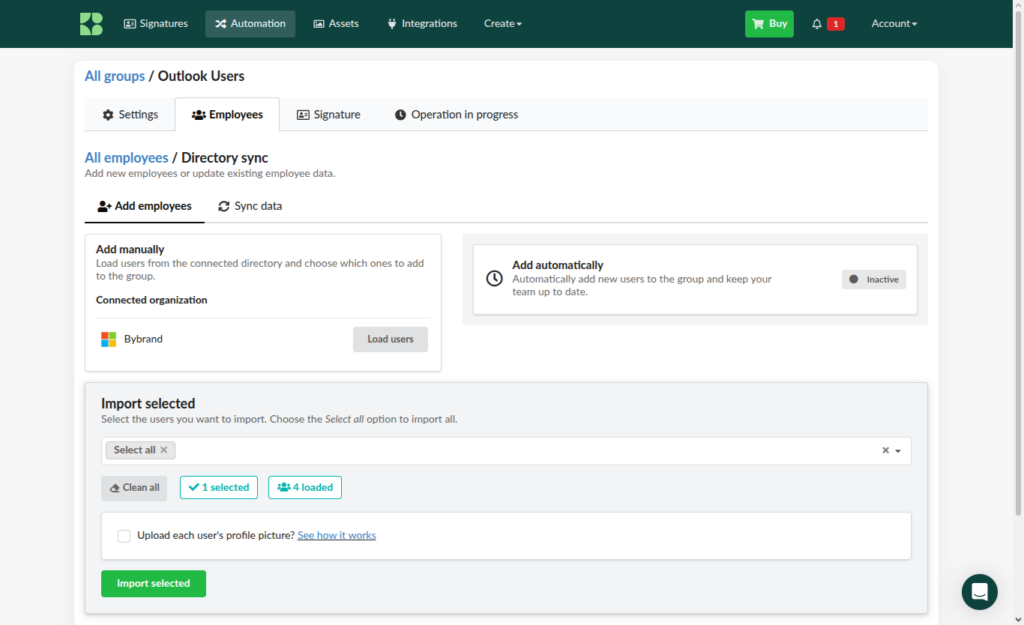
Choose specific users
Use the selection field to add only certain people. You can search by name and include multiple users in the same import.
Bybrand shows:
- how many users were loaded from the directory;
- how many are selected for import;
- the Clear all option, to undo the selection.
Import profile photos
If you want to also add the photos available in the directory, check the Import each user’s profile photo option before starting the import.
If you leave the option unchecked, employees will be added without importing photos.
Add automatically (coming soon)
The Add automatically option allows you to include new users from the connected directory in the group without needing to perform a manual import. This way, the group can track organizational changes and stay up to date.
To locate the option:
- In the Employees tab, open Sync directory.
- Select Add employees.
- Locate the Add automatically panel, next to the manual import area.
Troubleshooting
The user list did not appear
- Confirm that you clicked Load users.
- Verify if the integration is still connected.
- Confirm that the directory has available users.
- Refresh the page and try loading again.
An employee does not appear in the list
Users added recently to the directory may take up to 24 hours to become available for import. Additionally, verify:
- Search by name or email.
- Confirm that the person exists in the connected directory.
- Verify that the account is active and accessible through the integration.
- Check if the user has already been added to the group.
I selected the wrong employee
Go back to the employee list and click to remove the incorrectly added employee.
The import was not completed
Check if the integration is active and try again. If the error persists, review the connection to the directory.