
This post is also available in:
In some cases, when switching email signatures in Gmail (especially when alternating between email aliases or between multiple signatures) HTML characters may appear at the end of the message, such as:
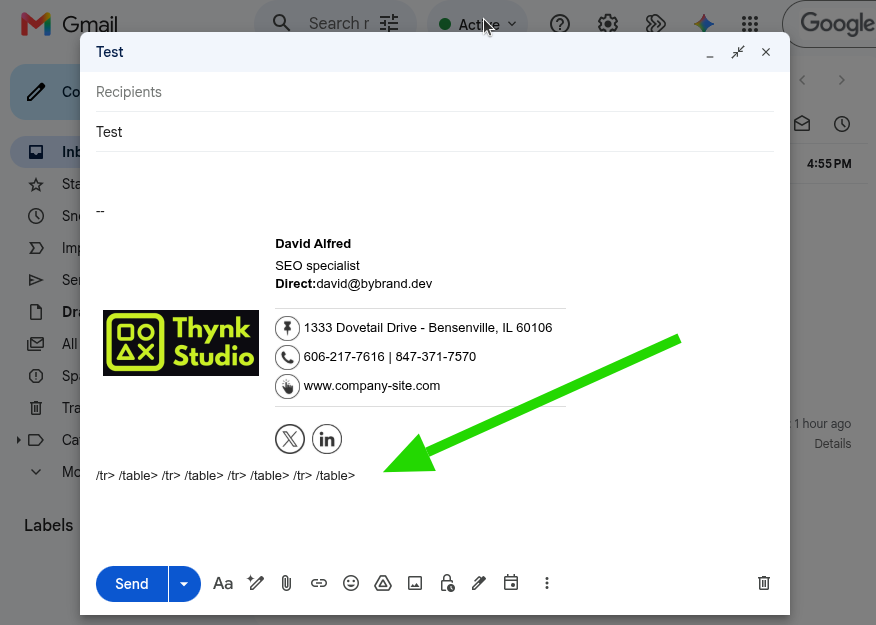
/tr> /table> /tr> /table> /tr> /table>This behavior generally does not mean that the current Bybrand email signature is problematic. It indicates that the issue may be related to old signatures saved in Gmail, browser cache, or some previous state of the Gmail editor.
When this problem can occur
This error may appear when the user:
- is using email aliases in Gmail;
- has multiple signatures registered;
- switches the signature manually within the compose window;
- has had other old signatures saved in Gmail;
- has old Gmail data loaded in the browser.
Video example
In the video below, we show an example of switching signatures between aliases without error.
In this example, Gmail correctly alternates between aliases and applies the corresponding signature without displaying residual HTML characters.
Possible solutions
We recommend following the steps below in order.
1. Test in an incognito window
Before clearing anything, perform a quick test in an incognito browser window.
How to test:
- Open an incognito window in the browser.
- Access Gmail.
- Log in to the account.
- Click Compose.
- Switch the From field between aliases.
- Check if the signature changes normally and if the HTML characters disappear.
What this test indicates:
- If it works in incognito: the problem is likely in cache, cookies, or some browser extension.
- If the issue continues: there may be old signatures saved in Gmail or some account state that needs to be cleared.
2. Clear browser cache
If the incognito window test works, the next step is to clear browser data.
How to clear cache in Google Chrome:
- Open Chrome.
- Press Ctrl + Shift + Delete.
- In Time range, select All time.
- Check:
- Cookies and other site data
- Cached images and files
- Click Clear data.
- Close the browser.
- Open Gmail again and test switching the signature.
Tip
If preferred, the client can also clear only Gmail site data.
3. Test in another browser
If the error continues, test in another browser. If you are using Google Chrome, try, for example:
- Microsoft Edge
- Mozilla Firefox
- Opera
If it works in another browser, this reinforces that the problem is related to the local environment of the previous browser.
4. Remove all signatures saved in Gmail
If the problem persists, we recommend removing all existing signatures in Gmail settings and then testing again.
This helps eliminate remnants of old signatures that may be interfering when Gmail switches signatures between aliases.
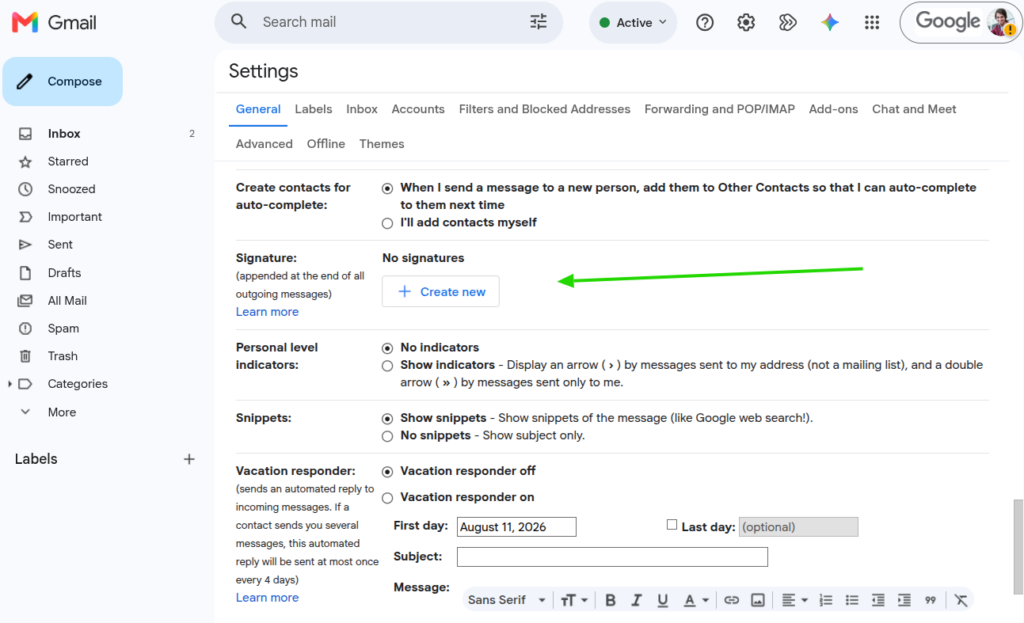
How to remove all signatures from Gmail
- Open Gmail.
- Click the gear icon in the upper right corner.
- Click See all settings.
- In the General tab, locate the Signature section.
- If there are registered signatures:
- select each one;
- click the trash icon or remove manually;
- delete all existing signatures.
- The goal is to leave the section as in the image below, with “No signatures.”
- Scroll to the bottom of the page.
- Click Save changes.
Note
If the client has aliases, it is important to remove all old signatures associated with the account before testing again.
What to do after removing all signatures
Confirm that no old signature is being inserted anymore.
After that, Bybrand can redeploy the email signature, or the client can continue using the current signature already applied. After redeployment, it may be necessary to reload Gmail (F5) to pick up the updates.