
This post is also available in:
This tutorial explains how an administrator can deploy the Bybrand Outlook add-in across the entire organization (or to specific groups) using the Microsoft 365 admin center. The process is straightforward and only takes a few minutes.
Video tutorial:
Before you begin
Make sure you have the Bybrand manifest.xml file saved on your computer. If you don’t have it yet, you can download it from the Integrations section of your Bybrand account.
You will also need:
- A Global administrator account (or equivalent permissions to deploy add-ins).
- Access to the Microsoft 365 admin center.
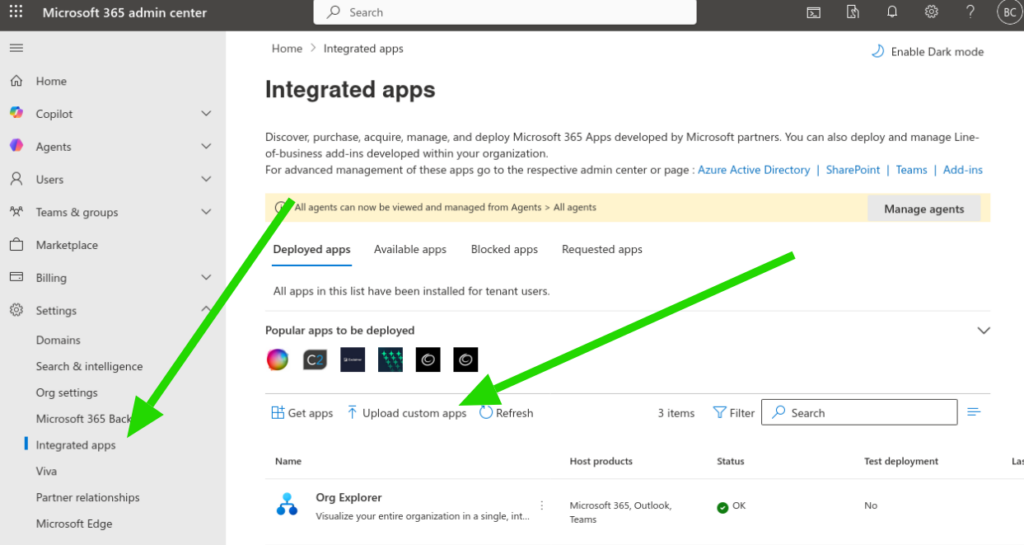
Step 1: Access the integrated apps section
- Sign in to the Microsoft 365 admin center using your administrator account.
- In the left menu, click Show all (if necessary).
- Click Settings and then select Integrated apps.
- Click Upload custom apps.
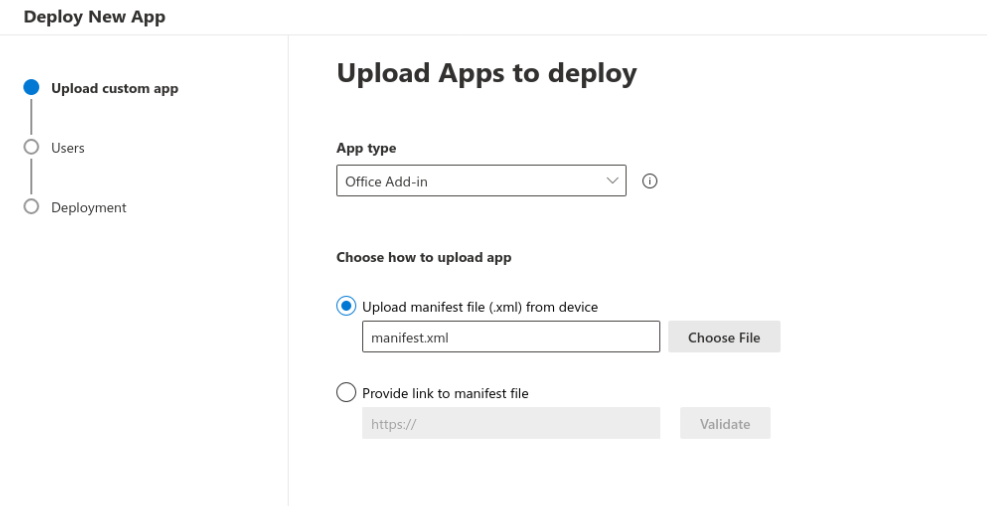
Step 2: Upload the manifest.xml and validate
In this step, you will upload the manifest.xml file from your computer.
- Upload the manifest.xml file.
- Click Validate (or proceed until automatic validation completes).
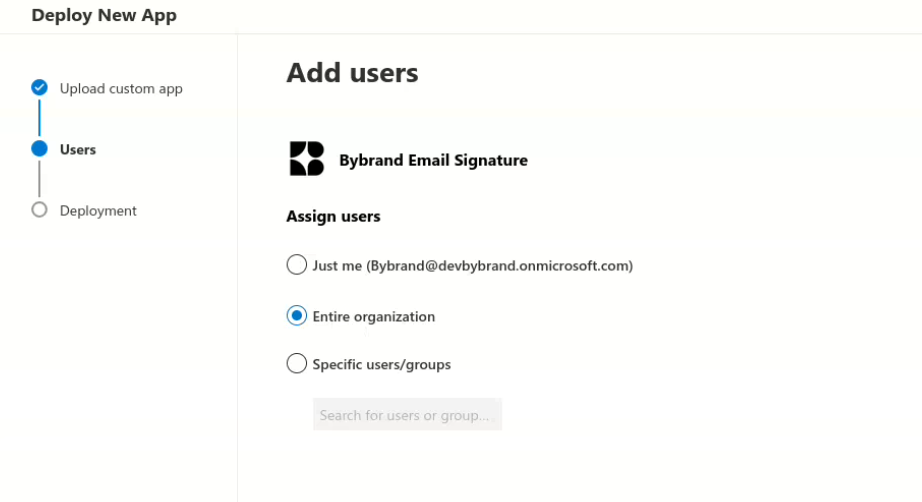
Next, choose whether you want to deploy the Bybrand add-in to:
- Entire organization, or
- Specific users/groups.
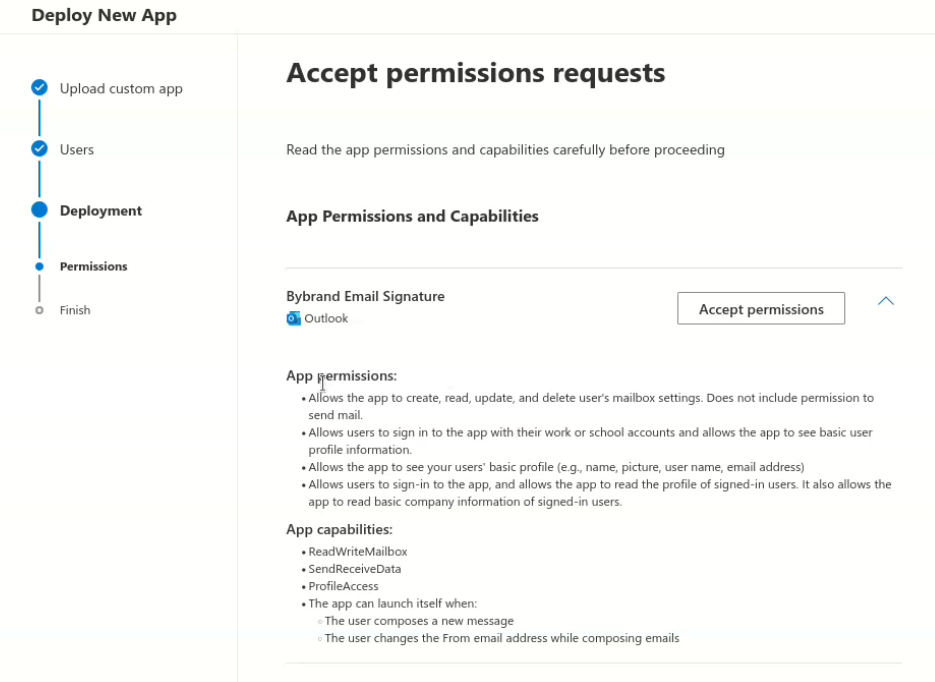
To complete the process:
- Accept the required permissions.
- Finish the deployment.
- Click Next to start the deployment process.
After that, the add-in will appear in Integrated apps, and you can later edit access if needed.
Step 5: Verify the deployment
If a user does not see the Bybrand add-in:
- Ask them to refresh Outlook (reload the page in Outlook Web), or
- Close and reopen Outlook (Desktop).
This usually forces the update and helps the add-in appear faster.
What end users should see
Outlook on the Web (OWA)
The add-in appears when composing a new email, typically under Apps / Add-ins in the message window.
Outlook Desktop
It may take slightly longer to propagate due to local policies and client-side cache.
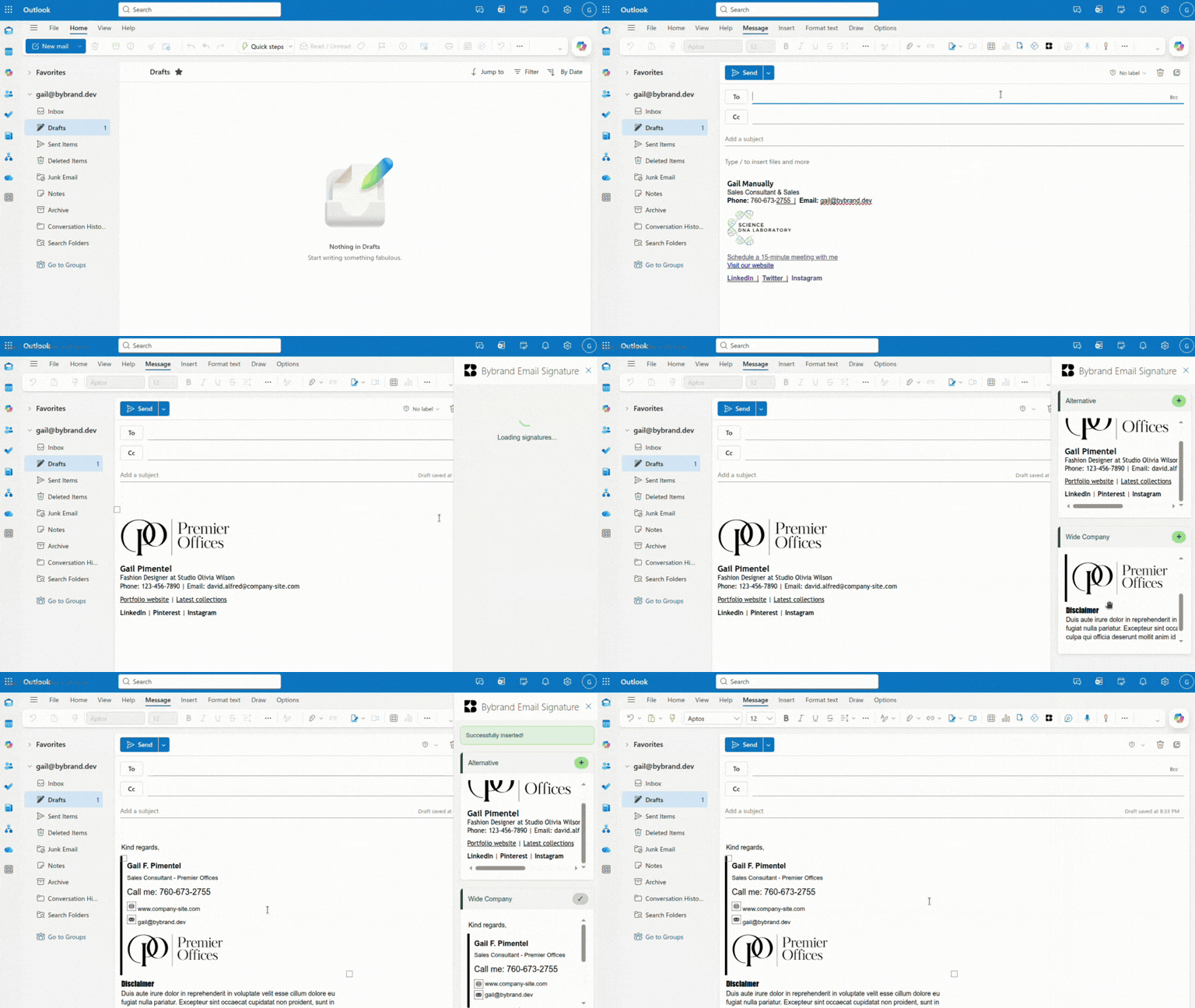
See full details here:
Tips and common troubleshooting
I deployed it, but the user doesn’t see the add-in
- Confirm the user is included in the selected scope (Entire organization or Specific users/groups).
- Go back to Integrated apps, select the Bybrand add-in, and review user access.
- Ask the user to close and reopen Outlook/OWA (cache and session often affect visibility).
Manifest validation failed
This typically indicates an issue with the manifest itself (inaccessible URLs, formatting issues, or unmet requirements).
Microsoft recommends deploying through the Integrated apps portal, as it provides the most complete validation process.
I want to change from group deployment to the entire organization
You can edit the deployment scope later:
- Go to Integrated apps, select the Bybrand add-in, and update access settings.
The signature is not loading for the user
Make sure employees have the correct signature configured in Bybrand.
The add-in can only load a signature if it is properly assigned to the employee.
The Bybrand add-in for Outlook is not working correctly
For the Bybrand add-in for Outlook to function correctly, third-party cookies must be enabled in the user’s browser.
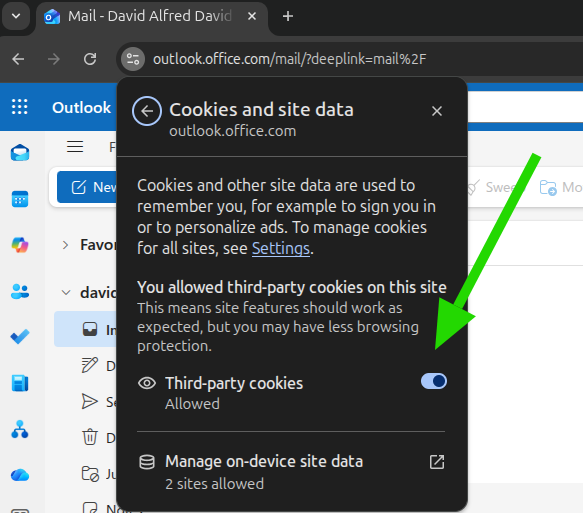
How to do it:
- Open their browser settings.
- Go to Privacy and Security → Cookies and other site data.
- Make sure third-party cookies are allowed
After enabling third-party cookies:
- Refresh Outlook on the Web, or
- Close and reopen the browser.
It appears in Outlook Web but not in Outlook Classic (Windows)
A common cause is Outlook/Office cache preventing the add-in from updating properly. Clear the Office/Outlook add-in cache to resolve issues related to outdated content.
After clearing the cache, completely close Outlook and reopen it.
Does the component work in Outlook for Mac?
Yes! The Bybrand component is compatible with Outlook for Mac (latest versions of Outlook), allowing users to use standardized email signatures directly when composing new messages.
Watch the video: How to use the Bybrand add-in in Outlook for Mac
If the component does not appear immediately, you may need to restart Outlook or wait a few minutes after deployment in your organization.
Mobile device limitations
No support for aliases, shared/delegated mailboxes, or non-Exchange accounts.
Mobile versions supported
The add-in works only on the following versions of Android or iOS:
- Android (Version 4.2352.0 and later)
- iOS (Version 4.2352.0 and later)
See the Bybrand Add-in Load in Outlook Mobile (Android, iPhone, iPad). Visit How the Outlook Add-in works