
This post is also available in:
By completing these steps, you can effortlessly sync users’ profile photos (Google Workspace or Microsoft Entra ID) with the integration’s placeholder. This ensures that the latest photo is always shown in Gmail or Outlook as the email signature.
Profile photo sync
- To access the sync photo option, navigate to the Automation menu.
- Then an automation connected to Google Workspace.
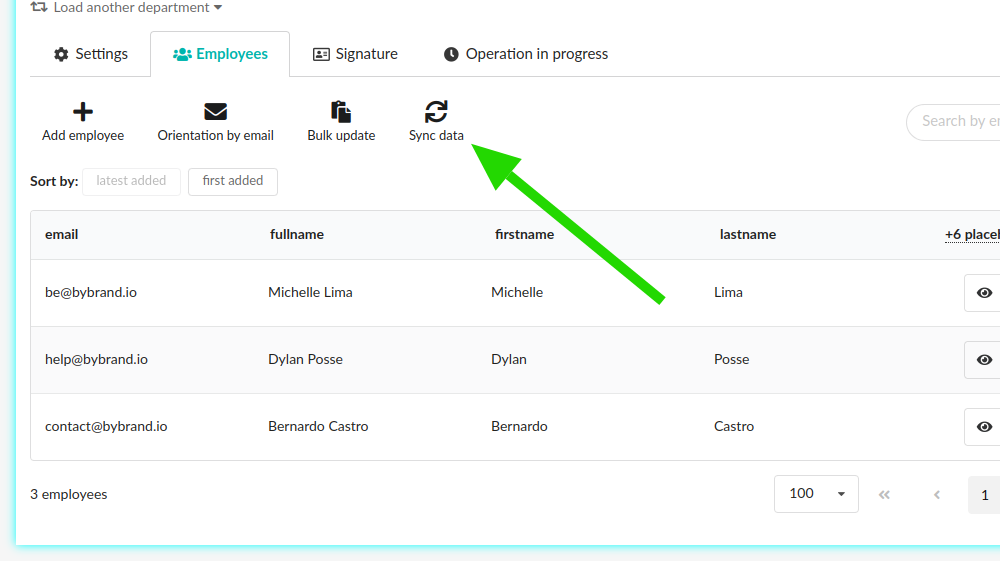
- Click the Sync data button.
Similar to this image:
On the synchronize page, click to Load users related to the automation domain.
In the second part, click on the option: Sync only employees’ profile photos? Similar to the image illustrated below.
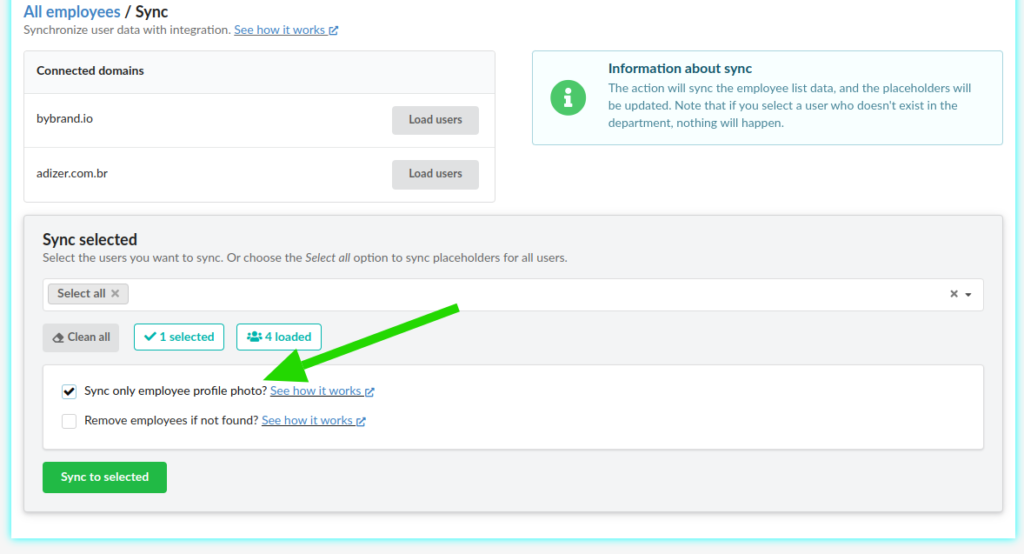
To finish, click the Sync to selected button.
After syncing, the profile photos will be updated. Synced images will also appear in the gallery, ready to be inserted manually if necessary.
Information
- If the
{{photo}}placeholder is empty, Bybrand will attempt to populate the field automatically with the photo URL. - Only the image content is updated; the URL remains the same.
- If a photo URL was manually added to the
{{photo}}placeholder, the option will not change the information. But it will upload the image to the gallery. Therefore, you can change it manually. - Read also: Changing image content manually without changing the URL.
Image cache
Image synchronization generates a temporary cache. Therefore, please allow approximately 24 hours for the content to expire and for the update to be correctly reflected.
In most cases, the change may not appear immediately, as the system might continue displaying the cached version until that period ends.
If you have any questions or encounter any issues during the process, don’t hesitate to contact Bybrand support for additional assistance.