
This post is also available in:
This article covers the most common issues that may occur when using Microsoft Entra ID integration with Bybrand to import employees, synchronize data, and generate dynamic email signatures.
The Microsoft Entra ID integration helps keep employee information up to date in Bybrand. However, some situations may prevent a signature from being created, linked, or synchronized correctly.
Email signature not linked to an employee
This issue can occur when an employee has been imported from Microsoft Entra ID but does not have a dynamic email signature linked to their record.
In most cases, this happens when there is no Automation group associated with the employee or when the signature link was removed for some reason.
How to check
- Go to the Automation menu.
- Open the group where the employee should be located.
- Verify that an email signature is assigned to the group.
- Open the employee list within the group.
- Click on the employee and confirm that a personalized signature has been generated.
Automation group screen showing the employee list and the assigned signature.
How to fix it
If the employee is not properly linked to a dynamic signature, import the employee again through the integration.
- Go to Integrations.
- Open the Microsoft Entra ID integration.
- Click Add employee.
- Select or import the employee again.
- Return to the Automation group and verify that the signature has been created.
If duplicate employee records appear after the import, remove the duplicates and keep the correct employee record.
Tip: Before deleting a duplicate employee, verify which record is linked to the correct dynamic signature.
Integration removed
If the Microsoft Entra ID integration is removed from Bybrand, employee email signatures will no longer be synchronized with Microsoft Entra ID data.
As a result, changes made in the directory, such as name, job title, phone number, or department, will not be automatically updated in previously imported employee records.
How to check
- Go to the Integrations menu.
- Look for the Microsoft Entra ID integration.
- Verify that the integration is still active.
- If the integration is not listed, it has likely been removed.
After reconnecting the integration, check the Automation groups to ensure that employees are correctly associated with dynamic email signatures.
Employee removed or updated in Microsoft Entra ID
If an employee has been removed, disabled, or had their email address changed in Microsoft Entra ID, Bybrand may not be able to synchronize the record correctly.
This issue mainly affects employees who use dynamic signatures generated from imported data.
How to fix it
If the employee still exists in Microsoft Login ID, perform a new synchronization or import the employee again.
If the email has changed, check if Bybrand created a new record for that employee. If so, remove the old record to avoid duplication.
Group without an assigned dynamic signature
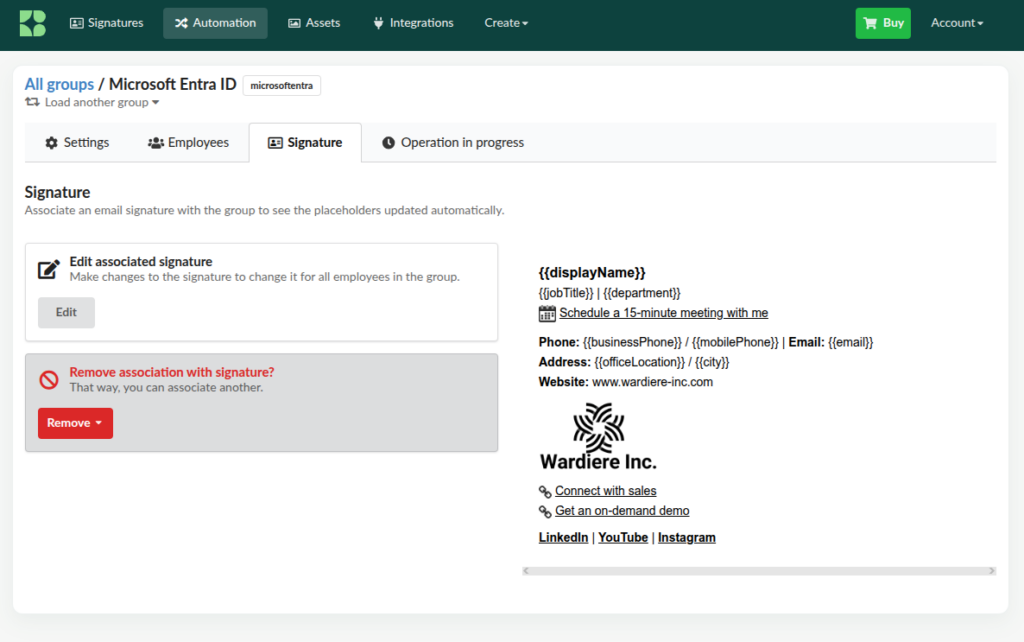
A dynamic signature can only be generated if the Automation group has an email signature assigned to it.
If the group exists but no signature is associated with it, employees may be imported successfully but will not have a personalized signature available.
How to check
- Go to Automation.
- Open the desired group.
- Navigate to the Signatures tab or step.
- Verify that a signature is assigned to the group.
How to fix it
- Create a new email signature or select an existing one.
- Use placeholders such as
{{displayName}},{{email}},{{jobTitle}}, or other imported fields. - Assign the signature to the Automation group.
- Return to the employee list and confirm that signatures have been generated.
For example, a dynamic email signature associated with the Automation group.
Employee data does not appear in the signature
This issue occurs when the dynamic email signature uses a placeholder that does not exist in the employee data imported from Microsoft Entra ID.
For example, if the signature uses {{phone}} but the phone number was not imported, that placeholder may appear blank in the generated signature.
How to check
- Open the employee record within the Automation group.
- Review the available employee fields.
- Compare the employee fields with the placeholders used in the signature.
- Check whether any placeholders are empty or incorrectly named.
How to fix it
Update the signature so that it uses the same field names available in the employee record.
You can also update employee information in Microsoft Entra ID and synchronize employees again in Bybrand.
If you have any questions or need assistance, please contact our support team by email or chat.