
This post is also available in:
The Bybrand provides a way for you to invite users to access your account and help you manage email signatures effectively.
Accessing the team section
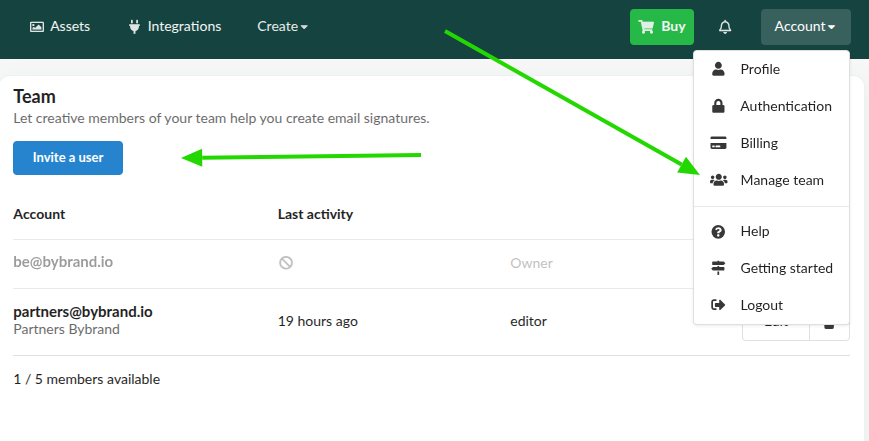
Enter your account and make your way to the Manage Team menu, as shown in the image.
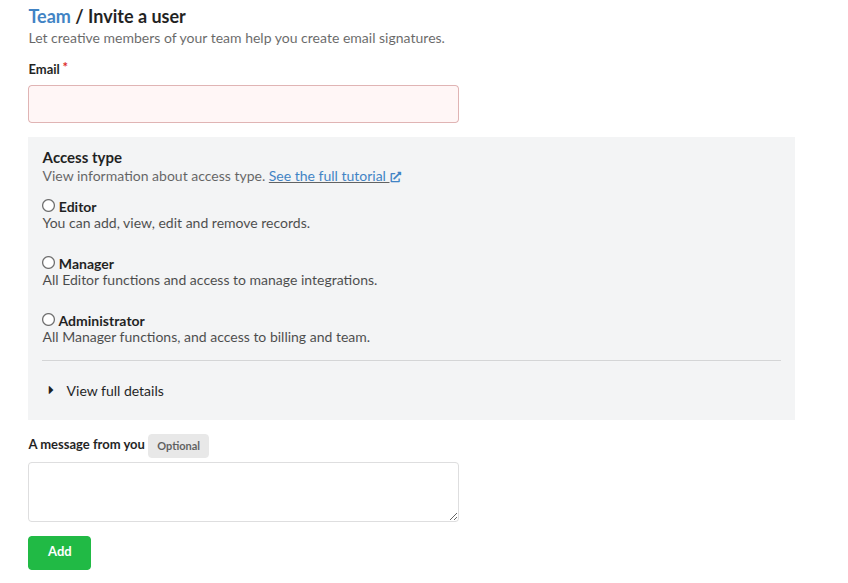
To invite a user, enter the account email address and access type. Optionally, you can also add a custom message to the email body.
Access type
The team feature provides access to Editor, Manager, and Administrator roles, with slight differences in their functions.
See the main differences:
Editor
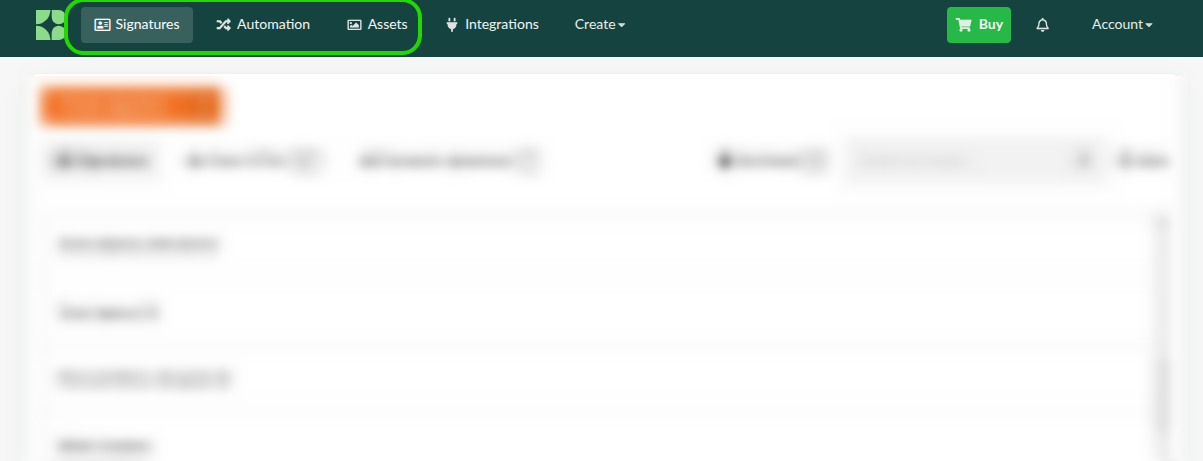
Permission to add, update, view, and remove all content and records from the Signatures section, including Automation and Assets. An editor can also update email signatures through integrations if it is still active.
An Editor user cannot manage the settings of the account, such as adding a new integration.
Manager
Receive all Editor functions and access to manage all integrations (remove and add integrations).
Administrator
Receive all Manager functions. Can also access the ability to manage billing and team members (including inviting other team members with Editor or Manager roles.).
You can edit or revoke access to any account at any moment.
Where can a user log in?
The login in the private Bybrand area is done through the same address as a normal administrator user, at https://app.bybrand.io.
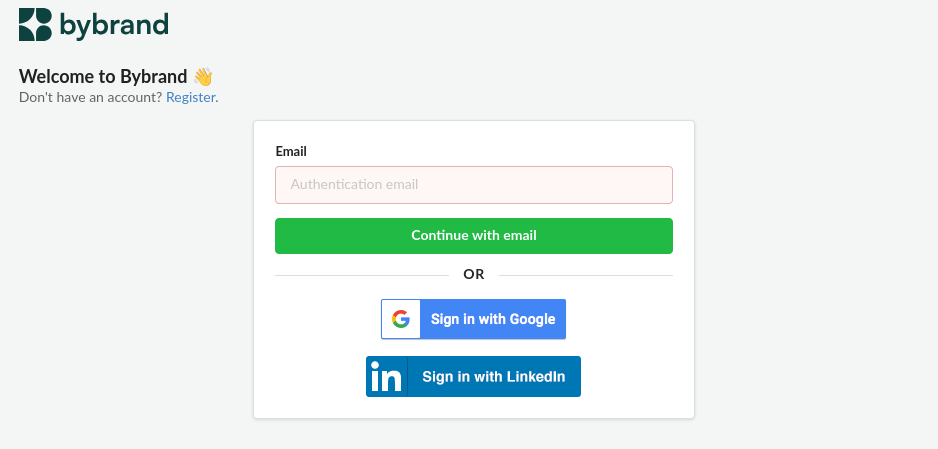
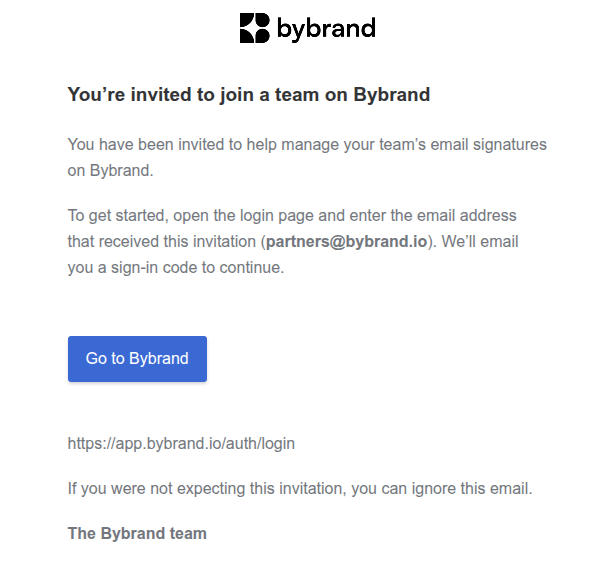
When you add a team member (or they log in with their email address), they’ll receive a passwordless login email similar to the one below. They can then click the link to access their account.
The owner of the account
The owner of the account has higher-level permissions than any other user. They are the first person to register on Bybrand. There’s only one owner per account, and that can be set using the “Account” tab in the account settings. The owner cannot be removed.
See also:
Possible sign-in issues with the team
I haven’t received the access code. What should I do?
Wait a few minutes and check your spam or junk folder. Also, make sure you entered the correct email address. If the message doesn’t arrive, request a new code on the sign-in screen.
If you use a corporate email address, your company’s security filter may have blocked the message. In that case, contact your email administrator for help.
I received the code but didn’t use it right away. Can I still sign in?
The access code is valid for a limited time. If it expires before you complete the sign-in process, request a new code and use it as soon as you receive the email.
I requested several codes. Which one should I use?
Check the most recent message and use the code in that email. Emails may be grouped into the same conversation, so check the time sent to avoid copying an earlier code.
To avoid confusion, wait a few minutes before requesting another code.
Can I use the same code to sign in again?
No. Each code can only be used once. After you sign in, it cannot be reused. To sign in again, request a new code on the sign-in screen.