
This post is also available in:
Linked Signatures allow you to connect a normal email signature to a specific employee.
This link ensures that the correct signature is applied automatically, especially in Outlook Add-in deployments, where user identification is based on the email address of the logged-in account.
In practice, this feature creates a direct connection between:
- who the employee is, and
- which signature they should use.
Manual signature linking is required only for normal signatures. Signatures created dynamically in the Groups (Automation) section are automatically associated with the employee’s email address.
Why link a signature to an employee?
Linking signatures is essential when you need the correct signature to be applied automatically in Outlook.
Bybrand provides two complementary sections to create this link, depending on where you start.
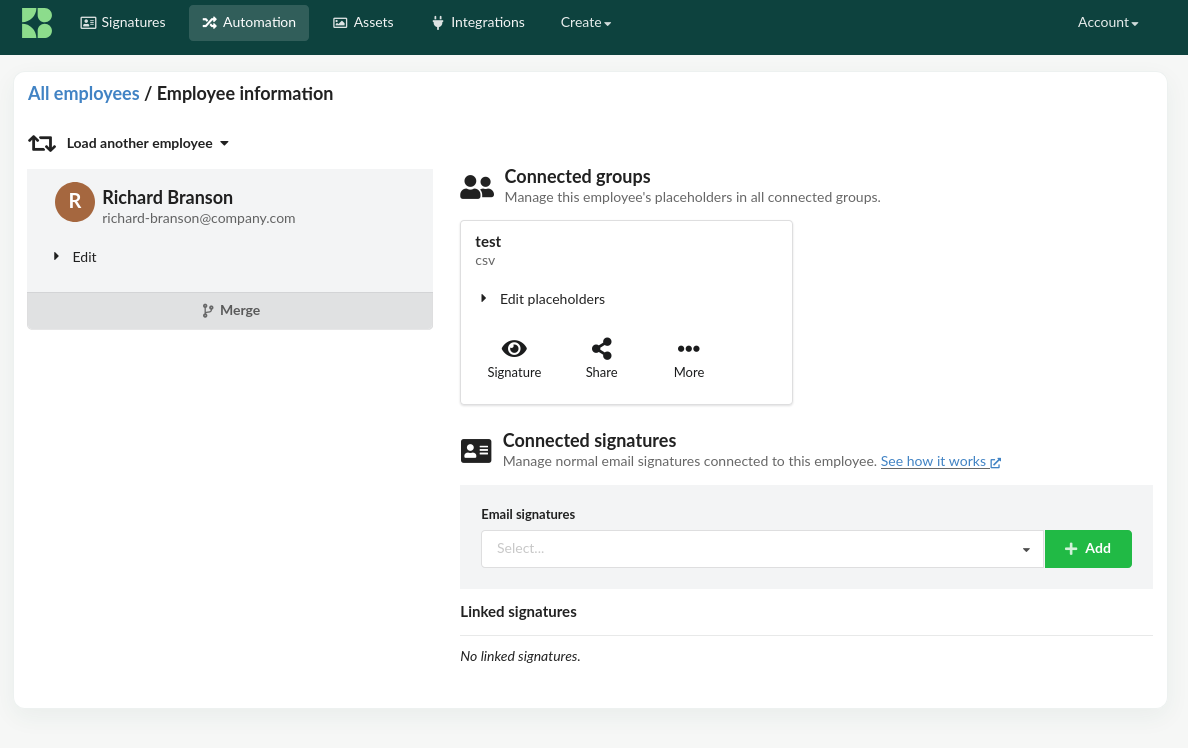
Linked Signatures (from the employee)
This section is available inside the employee profile, under Automation → Employees.
- Go to Automation
- Open the employee list
- Locate the Linked Signatures section
- Select a signature in the Email signatures field
- Click Add
When should you use this option?
Use it when:
- The employee already exists in Automation
- You want to control which signatures the employee can use
- You need to define or review links individually
Link employee (from the signature)
This section is available in the signature editor, under the Signatures menu. Here, the flow is reversed: you start with the signature and define which employee should use it.
When should you use this option?
Use it when:
- You have just viewed or edited a signature
- You want to quickly link it to a specific employee
- You are preparing a signature for Outlook usage
Example video:
Relationship with the Outlook Add-in
The Bybrand Outlook Add-in works based on the identification of the email account used in Outlook.
When the add-in is opened, the system automatically detects the user’s email address, finds the corresponding employee in Bybrand, checks which signatures are linked to that employee, and applies the correct signature automatically—without any manual action.