
This post is also available in:
Adding employees via a list is the fastest way to register multiple employees at once. You save time (by not having to fill out forms one by one), paste data that’s already been reviewed, and can import dozens of employees in just a few seconds, keeping your records more consistent.
Video tutorial:
Step-by-step
- Go to the Automation section, then the Employees menu → Add Employee
- Click the Add by List tab.
- In the Employees field, paste the list (one per line) in the format: Full name, email.
- Check that all email addresses are correct.
- Click Add Employees.
Example:
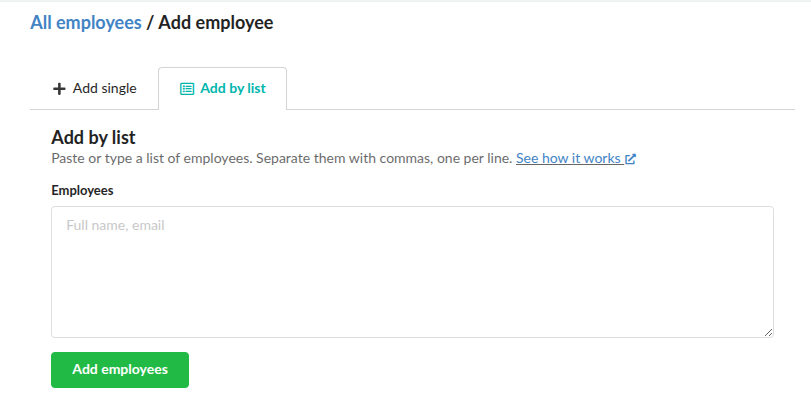
Example (copy and paste)
Bill Gates, bill-gates@company.com
Satya Nadella, satya-nadella@company.com
Susan Cain, susan-cain@company.com
Tips and precautions
- Do not use a semicolon (;)—use a comma (,).
- If the name contains a comma, remove the comma from the name (or paste only the email address).
- You can add 500 employees at a time. If your list has more than 500 records, then add them separately.
- To import via directories, use the Google Workspace and Microsoft Entra ID options (when available).
Solving import issues
We check the format of the list, rewrite duplicate contacts, and check for syntax errors each time you import employees into Bybrand.
Did I import correctly?
To complete a successful contact import, search for the employee’s name. If it’s not found, try adding it manually.
The list shows an error
Malformed or incomplete email addresses are treated as syntax errors and are not added.
Something may be missing from the email address. For example, john@gmail is missing the “.com”, and john@gmailcom is missing the dot (.) Enter the missing information and try again.
The email address has extra spaces
Due to the way some export tools work (Excel, Google Sheets), an address may include unnecessary spaces before, after, or even in the middle. These extra spaces can cause a valid address to be reported as a syntax error.
Try using the TRIM function in Excel to remove spaces from text, or similar functionality.
The file has semicolons instead of commas
Some European spreadsheet programs use semicolons instead of commas to separate data fields in CSV or TXT files. This can cause problems when importing to Bybrand.
If your import file uses semicolons as separators, replace them with commas and try importing again.