
This post is also available in:
The Remove if inactive option is available only in manual sync. It appears after you load users from the connected directory.
What does this feature do?
When syncing data manually, Bybrand can remove from the group employees who are not found or are no longer active in the connected directory.
This feature helps keep the employee list up to date when someone leaves the company or loses access to the corporate directory.
Before you start
Check if:
- the group is connected to the correct directory;
- the integration is active;
- you have permission to sync and remove employees;
- inactive users have already been suspended, deactivated, or removed in the source directory.
How to access manual sync
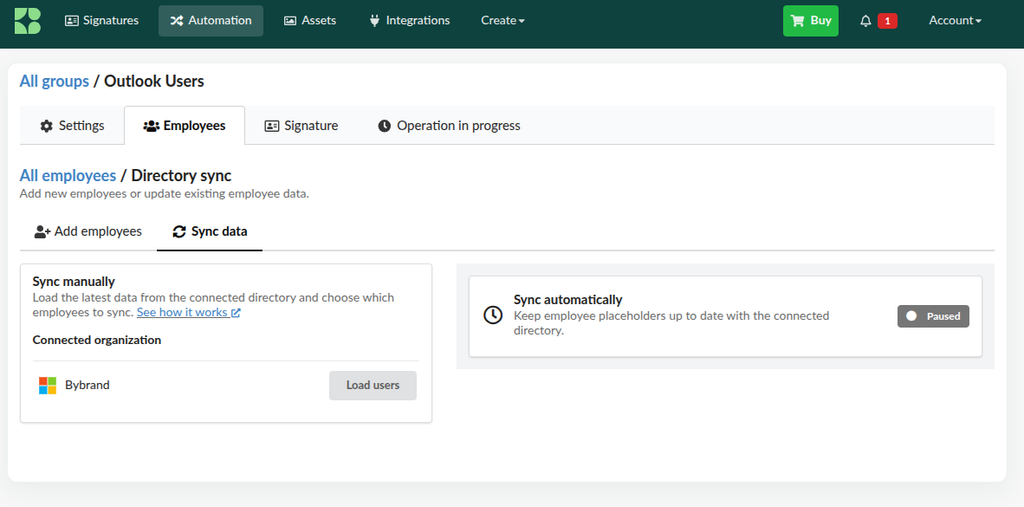
- In Bybrand, go to Automation.
- Open the group connected to the directory.
- Click the Employees tab.
- Open Sync directory.
- Select the Sync data option.
The option to remove inactive employees is part of the manual flow.
How to use the Remove if inactive option
- In the Sync manually area, confirm the connected organization.
- Click Load users.
- Wait for Bybrand to fetch users from the directory.
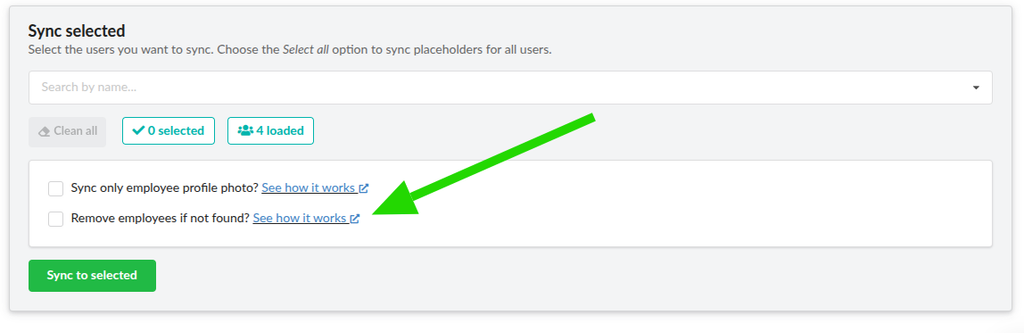
- In the Sync selected section, choose the employees you want to sync. To process everyone, use the Select all option.
- Check Remove if inactive.
- Review the selection before continuing.
- Click Sync selected.
- Wait for it to finish and check the result of the operation.
What happens during synchronization?
Bybrand compares the selected employees with the users found in the connected directory.
- If the user is active and found, the mapped data will sync normally.
- If the user is not found or is inactive, they can be removed from the group when the option is checked.
- If the option is not checked, the sync will update the data without removing inactive employees.
When should you use this option?
Use Remove if inactive when:
- someone left the company;
- the account was deactivated in the directory;
- the user was removed from the connected organization;
- you want to align the group list in Bybrand with the connected directory.
Precautions before removing
- Confirm the integration is connected to the correct organization.
- Check in the directory whether the account was actually deactivated or removed.
- If in doubt, remove them manually directly from the employee list.
Manual removal
To remove only a few—let’s say 2 or 3 employees—it’s better to do the removal manually in the automation.
Go back to the employee list, select the employee, and click Remove.
Here’s a video with a quick example of how to remove an employee manually.
Frequently Asked Questions
Is the option available in automatic sync?
No. Remove if inactive is available only in manual sync.
Do I need to load users first?
Yes. The option only appears after you click Load users and Bybrand queries the directory.
Does Bybrand remove the user from the connected directory?
No. The action happens only in Bybrand and does not change the source directory.
Can I sync without removing employees?
Yes. Leave Remove if inactive unchecked and run the sync normally.
Should I select all employees?
It’s not required. You can choose specific users or use Select all to process the entire group.
Does not work for suspended users
If the user is suspended in the Users Directory, they are still loaded in Bybrand. So this feature is removed only if the user is deleted completely.
Removed mistakenly
If the user is removed accidentally, you can add them again by going to Add employees.
Delay in propagation of changed data
When you change a user field in the Users Directory, it may take some time for the data update to propagate across services. Some changes may take up to 24 hours to take effect.
Therefore, if you sync data with Bybrand and do not see any changes, you may need to wait 24 hours.
More information about this here:
For any questions, please contact our support service.